Roblox is a vibrant and ever-evolving online universe where millions of players globally connect daily to explore an endless array of virtual worlds games and experiences. For many busy adults who enjoy gaming as a form of relaxation skill-building and social interaction inviting friends to join in the fun is paramount. This comprehensive guide simplifies the process of how to invite friends in Roblox ensuring you can quickly link up with your buddies regardless of whether you are on PC mobile or console. We understand that your gaming sessions are valuable moments of escape and connection so we cut through the clutter to provide straightforward actionable steps. Discover everything from sending direct friend requests joining ongoing games leveraging privacy settings and troubleshooting common issues that might arise during your attempts to connect. By mastering these methods you will enhance your social gaming experience transforming solo play into memorable shared adventures within the expansive Roblox ecosystem.
How do you send a direct friend request in Roblox?
You can send a direct friend request in Roblox by navigating to the 'Friends' section on the left-hand menu, then using the 'Search for players' bar to type your friend's exact username. Once their profile appears, click the 'Add Friend' button next to their name. Your friend will receive a notification and needs to accept the request to become friends.
What is the quickest way to join a friend already in a Roblox game?
The quickest way to join a friend in a Roblox game is to go to your 'Friends' list from the main Roblox menu. If your friend is playing and their privacy settings allow, you will see a 'Join Game' button next to their profile. Clicking this button will automatically launch the game and attempt to place you in the same server as them.
Can I invite friends to my private Roblox server?
Yes, you can invite friends to your private Roblox server. After purchasing or configuring a private server for a specific game, you'll typically find options within the server settings to add specific friends by their username or generate an invite link. Share this link or add their usernames to grant them access to your exclusive gaming session.
Why can't my friend invite go through in Roblox?
Several reasons might prevent a Roblox friend invite from going through, including incorrect username spelling, an unstable internet connection, Roblox server issues, or strict privacy settings on either player's account. It's crucial to verify the username, check internet stability, and ensure privacy settings allow friend requests from 'Everyone' or 'Friends of Friends'.
Is Roblox cross-platform for friend invites and gameplay?
Yes, Roblox is fully cross-platform. This means you can send friend requests and play with friends regardless of their device, whether they are on PC, mobile, Xbox, or other supported platforms. The universal Roblox username system ensures seamless connectivity across all devices, simplifying social gaming for everyone.
How do privacy settings affect Roblox friend requests?
Privacy settings significantly impact Roblox friend requests. Under 'Privacy' settings, options like 'Who can send me friend requests?' control who can initiate contact. If this is set to 'Friends of Friends' or 'No One', direct requests from non-mutual friends or strangers will be blocked. Always check these settings if you're experiencing issues with invites.
What are the best practices for coordinating Roblox game sessions with friends?
For efficient coordination of Roblox game sessions, best practices include using external communication apps like Discord or WhatsApp for planning, establishing regular gaming times if possible, and sharing direct game links. Confirming availability shortly before a session and leveraging Roblox's 'Follow' feature can also streamline the process for busy adult gamers.
For many of us who juggle careers families and daily responsibilities, gaming isn't just a pastime—it's a vital escape, a way to unwind, and a fantastic platform for social connection. Roblox, with its immense variety of user-created games, stands out as a prime spot for this. However, sometimes the simplest things, like figuring out how to invite friends in Roblox, can feel like a mini-quest in itself, especially when you're short on time and just want to jump into a game with your pals. You're not alone if you've ever felt this way; balancing gaming with life means every minute counts, and a smooth setup is key.
The social aspect of gaming is more prevalent than ever. Recent US gaming statistics from this month indicate that approximately 87 percent of adult gamers play regularly, often dedicating 10 or more hours per week to their favorite titles. A significant portion of this engagement, especially on platforms like Roblox, is driven by social interaction and the desire to play with friends. Mobile gaming continues to dominate, making seamless cross-platform invites crucial. This comprehensive guide is designed for you—the gamer who values efficient solutions, seeks fun without the fuss, and wants to optimize their social play on Roblox. We'll walk through every method for inviting friends, troubleshoot common snags, and ensure you're spending less time figuring things out and more time enjoying those precious moments with your gaming crew.
How do you send a direct friend request in Roblox?
Sending a direct friend request is the foundation of social interaction in Roblox. It’s a straightforward process, but knowing the exact steps ensures your invitation doesn't get lost in the digital ether. This method allows you to establish a connection outside of a specific game, enabling future join options and direct messaging. For adult gamers, this is often the go-to for building a consistent friends list.
- Step 1: Open Roblox and navigate to the Friends section. Launch the Roblox application or visit the Roblox website. On the left-hand navigation bar, look for the 'Friends' option and click it.
- Step 2: Find the 'Add Friend' search bar. Once on the Friends page, you'll see a search bar, usually labeled 'Search for players' or 'Add Friend'.
- Step 3: Enter your friend's exact username. Type your friend's Roblox username precisely into the search bar. Roblox usernames are case-sensitive, so double-check for correct spelling and capitalization.
- Step 4: Send the friend request. After typing the username, press Enter or click the search icon. Your friend's profile should appear. Click the 'Add Friend' button next to their profile picture. They will then receive a notification, and once accepted, they'll be on your friends list.
Remember, your friend needs to accept the request for the connection to be established. Communication outside of Roblox, perhaps via a quick text or Discord message, can ensure they see and accept your request promptly.
What's the easiest way to join friends already playing in a Roblox game?
Joining friends already in a game is one of the most common and convenient ways to play together, especially when time is tight. This method bypasses the need for explicit in-game invites and gets you straight into the action. It's a lifesaver when you only have a short window to game and want to maximize play time.
- Open Roblox. Start your Roblox application or go to the Roblox website.
- Navigate to your Friends list. Click on the 'Friends' tab in the left-hand menu.
- Locate your friend. Scroll through your friends list or use the search bar to find the friend you want to join.
- Check their status. If your friend is currently in a game and their privacy settings allow it, their status will show 'In-Game' along with the name of the game they are playing.
- Click the 'Join Game' button. A 'Join Game' button will typically appear next to their name. Clicking this will launch the game and attempt to place you in the same server as your friend.
Keep in mind that some games have server capacity limits or private server settings that might prevent you from joining immediately. If you encounter issues, try again or ask your friend if they are in a full or private server.
Can I invite friends to my private server or game in Roblox?
Yes, inviting friends to a private server or a specific game you're hosting is a fantastic way to control the environment, avoid griefers, and ensure dedicated playtime with your chosen group. Many popular Roblox experiences offer options for private servers, often requiring a one-time or recurring Robux payment. This is perfect for those family gaming nights or team-building sessions where focus and exclusivity are desired.
- For Private Servers: If the game supports private servers, you typically purchase one from the game's details page. Once purchased, navigate to the 'Servers' tab on that game's page. You'll find your private server listed. There should be an option to 'Configure' or 'Settings' where you can add specific friends by username to an 'Allowed Players' list or generate an invite link. Share this link only with those you trust.
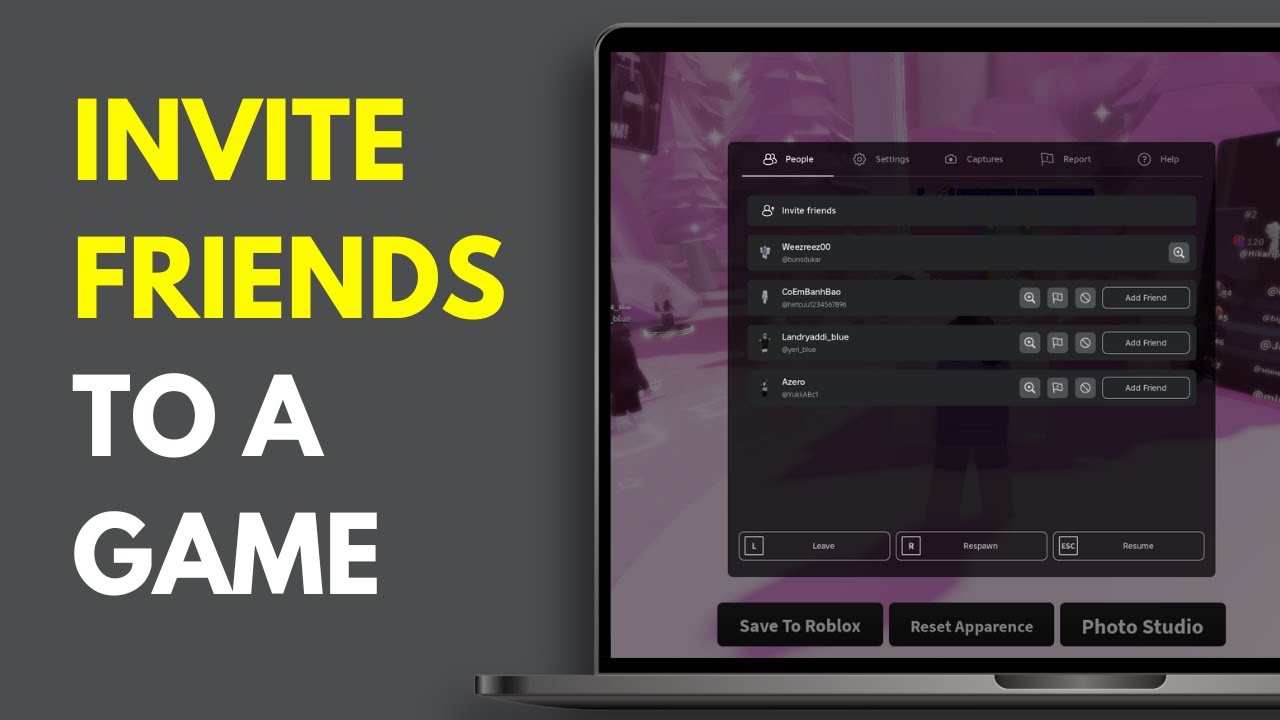
- For Public Games (In-Game Invites): If you're simply in a public game and want friends to join, some games have built-in invite systems. Look for an 'Invite' button, often found in the game's menu (usually accessed by pressing 'Esc' on PC or a menu button on consoles/mobile). This will typically bring up your Roblox friends list, allowing you to send an in-game invite that directly links them to your server.
Always double-check the specific game's features, as not all games offer the same private server or in-game invite functionalities. For adult gamers managing a budget, understanding whether a private server is a one-off cost or a subscription is key for value optimization.
How do cross-platform invites work in Roblox?
Roblox excels at cross-platform compatibility, making it easy to play with friends no matter their device. Whether you're on a PC, a friend is on a mobile phone, or another is on an Xbox console, the core friend invite system remains consistent. This feature is a huge win for diverse gaming groups, aligning with current trends where mobile gaming is often a primary platform for engagement.
- Consistent Roblox Usernames: The key to cross-platform play is the universal Roblox username. As long as you know your friend's exact username, you can add them regardless of the device they primarily use.
- Standard Friend Request System: The steps for sending and accepting friend requests (as outlined previously) are the same across all platforms where Roblox is available. A PC player can send a request to a mobile player, who can accept it, and vice-versa.
- Joining Games: Once friends, you can typically join their game directly from your friends list, regardless of your respective devices. The game will launch on your platform, and you'll be placed into the same server if space is available.
This seamless cross-play experience is why Roblox remains a top choice for social gaming, especially for families or groups of friends with varied tech setups. It removes common pain points associated with platform limitations, letting you focus on the fun.
What should I do if my Roblox friend invite isn't working?
Running into issues with friend invites can be frustrating, especially when you're trying to coordinate a game night after a long day. Several factors can cause invites to fail or not appear. Troubleshooting these common problems can save you a lot of headache and get you back to gaming faster.
- Check Username Accuracy: The most common issue. Roblox usernames are case-sensitive. Even a tiny typo or incorrect capitalization will result in 'User Not Found.' Double-check with your friend for their exact username.
- Internet Connection: Ensure both you and your friend have stable internet connections. A weak signal can prevent requests from sending or receiving.
- Roblox Server Status: Occasionally, Roblox servers might experience downtime or issues. Check Roblox's official status page or social media channels (like X, formerly Twitter) to see if there are any known problems.
- Privacy Settings: Your friend's privacy settings (or your own) might be preventing requests. They might have their settings configured to 'Who can send me friend requests?' to 'No One' or 'Friends of Friends.' Ask them to check and adjust these.
- Block List: Ensure neither of you has accidentally blocked the other. This would prevent any form of communication or friend requests.
- Roblox Client/App Update: Make sure both players are running the latest version of the Roblox client or app. Outdated versions can sometimes cause connectivity issues.
- Clear Cache: On PC, try clearing your browser's cache and cookies if using the website. On mobile, clear the app's cache (via phone settings).
If all else fails, a simple restart of the Roblox application or even your device can often resolve minor glitches. Sometimes the solution is as basic as turning it off and on again.
How can I find friends using their username in Roblox?
Finding friends by their username is the primary method for adding new connections in Roblox. This process is consistent across most platforms, making it a reliable way to expand your social circle. This is particularly useful for connecting with people you know from work, social clubs, or other online communities who also play Roblox.
- Login to Roblox: Access the Roblox platform via its website or application.
- Access the Friends section: On the left sidebar, click on 'Friends'.
- Use the 'Search for players' bar: At the top of the Friends page, you'll see a search bar. This is where you enter the username.
- Type the exact username: Input your friend's Roblox username precisely, paying attention to capitalization and spelling.
- Initiate Search: Press Enter or click the search icon.
- Send Request: Once their profile appears, click 'Add Friend'.
Always verify the profile picture or display name if you have multiple friends with similar usernames to ensure you're adding the correct person. This prevents accidental requests and keeps your friends list accurate.
Are there privacy settings that affect friend invites in Roblox?
Absolutely. Roblox provides robust privacy settings that give players control over who can interact with them. For adult gamers, managing these settings is crucial for a secure and enjoyable experience, especially when balancing social play with personal boundaries. Understanding these settings is vital if you're experiencing issues with sending or receiving friend requests.
- Accessing Privacy Settings: Click the gear icon (Settings) in the top-right corner of the Roblox website or app, then navigate to 'Privacy'.
- 'Who can send me friend requests?': This is the most relevant setting for invites. Options typically include 'Everyone' or 'Friends of Friends'. If your friend has this set to 'Friends of Friends' and you don't share any mutual connections, you won't be able to send them a direct request until they adjust it or you establish a mutual friend. If it's set to 'No One' (less common for adult gamers but possible), they won't receive any requests.
- 'Who can make me a member of their private servers?': This setting controls whether someone can add you to their private server without an explicit invite link.
- 'Who can join me in games?': This controls who can see your 'Join Game' button on your profile. Options typically include 'Everyone', 'Friends', or 'No One'. If this is set to 'No One' or 'Friends' and someone isn't your friend, they won't be able to join you directly.
It's a good practice to periodically review your own privacy settings to ensure they align with your preferred level of social interaction. A quick chat with your friend to verify their settings can often resolve invite issues immediately.
Tips for coordinating game sessions with friends on Roblox.
Coordinating game sessions with friends, especially when everyone has busy schedules, requires a bit of strategy. For the average adult gamer, who dedicates over 10 hours a week to gaming, making the most of that time through efficient coordination is key. Leveraging external tools and clear communication can turn potential headaches into seamless gaming experiences.
- Use External Communication Apps: Discord, WhatsApp, or even a simple group text are invaluable for quick coordination. Set up a dedicated chat for your Roblox crew to plan sessions, share game recommendations, and troubleshoot.
- Establish Regular Game Times: If possible, try to set a recurring time each week for a Roblox session. This creates a predictable schedule that everyone can plan around.
- Share Game Links: When deciding on a game, share the direct Roblox game link in your group chat. This avoids confusion and ensures everyone joins the correct experience.
- Confirm Availability: A quick 'who's free tonight for Roblox?' message an hour or two before a planned session can confirm attendance and prevent wasted waiting time.
- Utilize Roblox's 'Follow' Feature: While not a direct invite, 'following' a friend can sometimes give you notifications when they join a game, allowing you to quickly hop in if their privacy settings permit.
Effective communication is the backbone of social gaming. By using these tips, you can transform the often-chaotic process of coordinating into a smooth, enjoyable routine.
Why is social gaming important for busy adult gamers?
For adults balancing life's demands, gaming offers more than just entertainment; it's a vital source of stress relief, social connection, and even skill development. Social gaming, specifically, fulfills a unique niche. It's a low-pressure way to maintain friendships, forge new ones, and engage in shared experiences without the complexities of real-world meetups. In a world where 87 percent of US gamers play regularly, often exceeding 10 hours a week, and social gaming trends continue to rise, platforms like Roblox provide a crucial avenue for this type of interaction. It offers a sense of camaraderie and belonging, allowing players to collaborate, compete, and simply unwind together in a virtual space, reinforcing the idea that gaming is a powerful social tool that complements a busy lifestyle.
How does Roblox compare to other platforms for social play?
Roblox stands out in the social gaming landscape due to its unique blend of user-generated content, vast game library, and unparalleled cross-platform accessibility. While other platforms like Fortnite or Minecraft also boast strong social features, Roblox offers a broader spectrum of social interaction within a single ecosystem. Its 'Experiences' (games) range from competitive PvP to cozy role-playing, ensuring there's something for every group dynamic. The seamless cross-play across PC, mobile, and console simplifies friend invites and game joins, a significant advantage over platforms with more restrictive ecosystems. Furthermore, the ability to create and customize private servers (often affordably) provides a level of control and intimacy for friend groups that can be harder to achieve elsewhere. This flexibility and accessibility make Roblox an excellent choice for adult gamers seeking diverse, engaging, and easy-to-manage social gaming experiences.
FAQ Section
What is the minimum age to send friend requests on Roblox?
Roblox requires users to be at least 13 years old to use the full social features, including sending and receiving friend requests. Accounts for users under 13 have restricted social interactions for safety and privacy.
Can I invite non-friends to my Roblox game?
Generally, you can only send direct in-game invites to players on your Roblox friends list. However, if your game or private server is open to 'Everyone' in its settings, anyone can join if they find it. For private servers, you can often generate an invite link to share with non-friends.
How do I accept a friend request in Roblox?
When someone sends you a friend request, a red notification icon will appear on the 'Friends' tab on your Roblox homepage. Click on 'Friends', then 'Requests', and you will see the pending requests. You can then choose to 'Accept' or 'Decline' each request.
What is the maximum number of friends I can have on Roblox?
Roblox currently allows players to have up to 200 friends on their friends list. While this is a generous limit, it's a good idea to periodically review your list to keep it relevant to your active gaming circle.
Why can't I see my friend online even if they are playing Roblox?
Your friend's privacy settings might be set to 'Who can see my online status?' to 'No One' or 'Friends'. Also, sometimes a glitch can occur, or they might be in a game with a very limited player count that doesn't display their status publicly.
Does inviting friends cost Robux?
Sending a standard friend request or joining a friend's public game is always free. Purchasing a private server for certain games may require Robux, but the act of inviting friends to that server, once purchased, typically does not incur additional costs.
Connecting with your friends in Roblox truly elevates the experience from a solo adventure to a shared journey. We've covered everything from the basics of sending requests to navigating privacy settings and troubleshooting common snags. Remember, gaming is about having fun and connecting, especially for us busy adults looking to unwind. Mastering these simple steps ensures more playtime and less frustration. What's your biggest gaming challenge when trying to link up with friends? Comment below!
Direct friend invites Roblox joining games with friends in-game invites cross-platform friend invites Roblox privacy settings for friends troubleshooting Roblox invites group play in Roblox
35
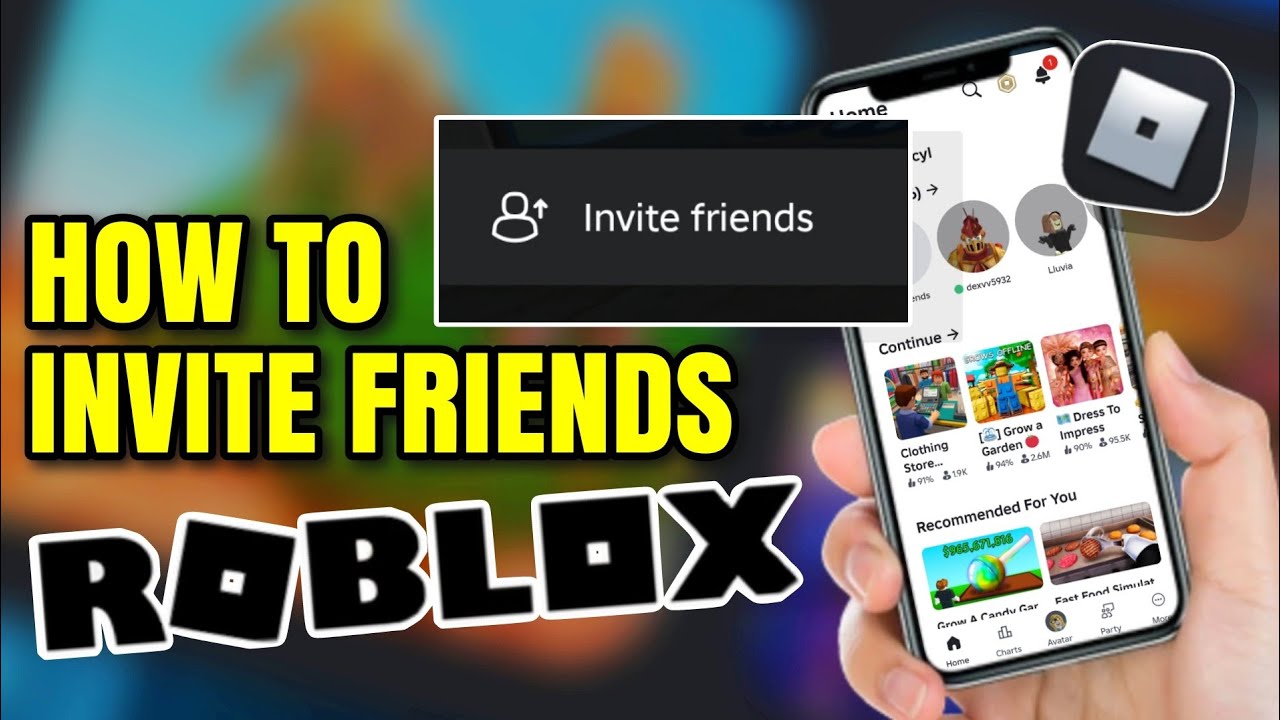
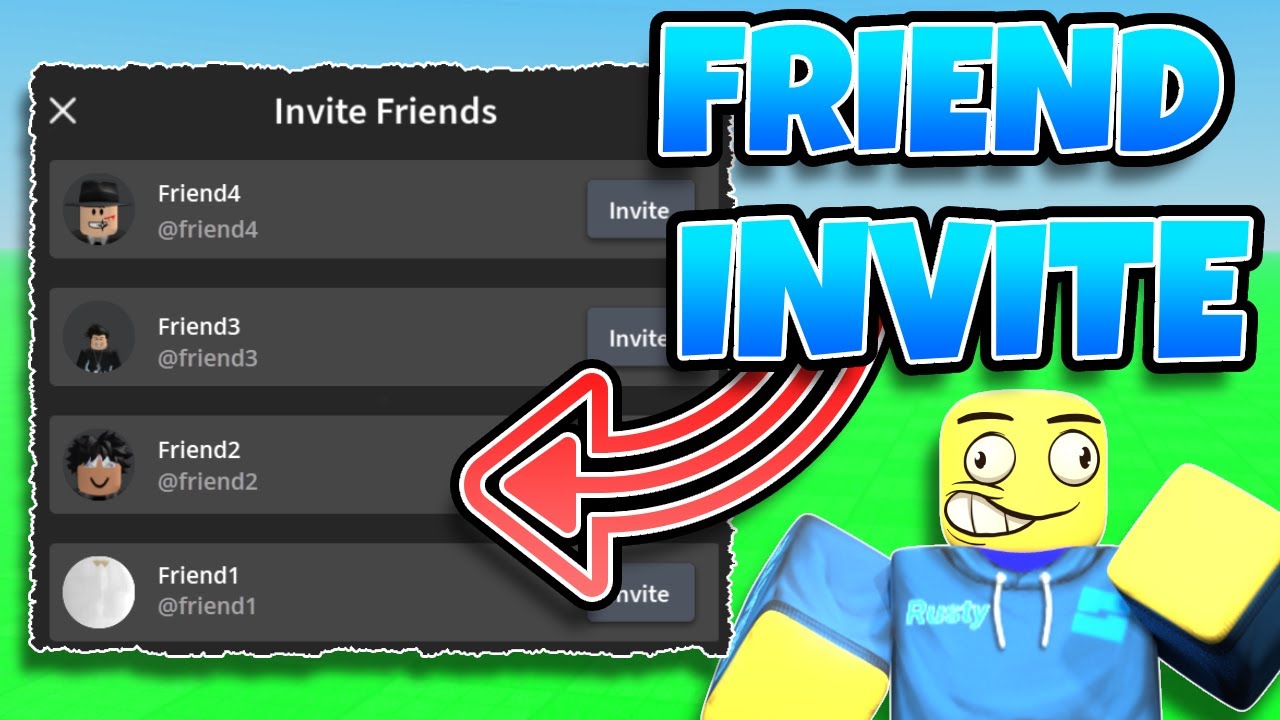
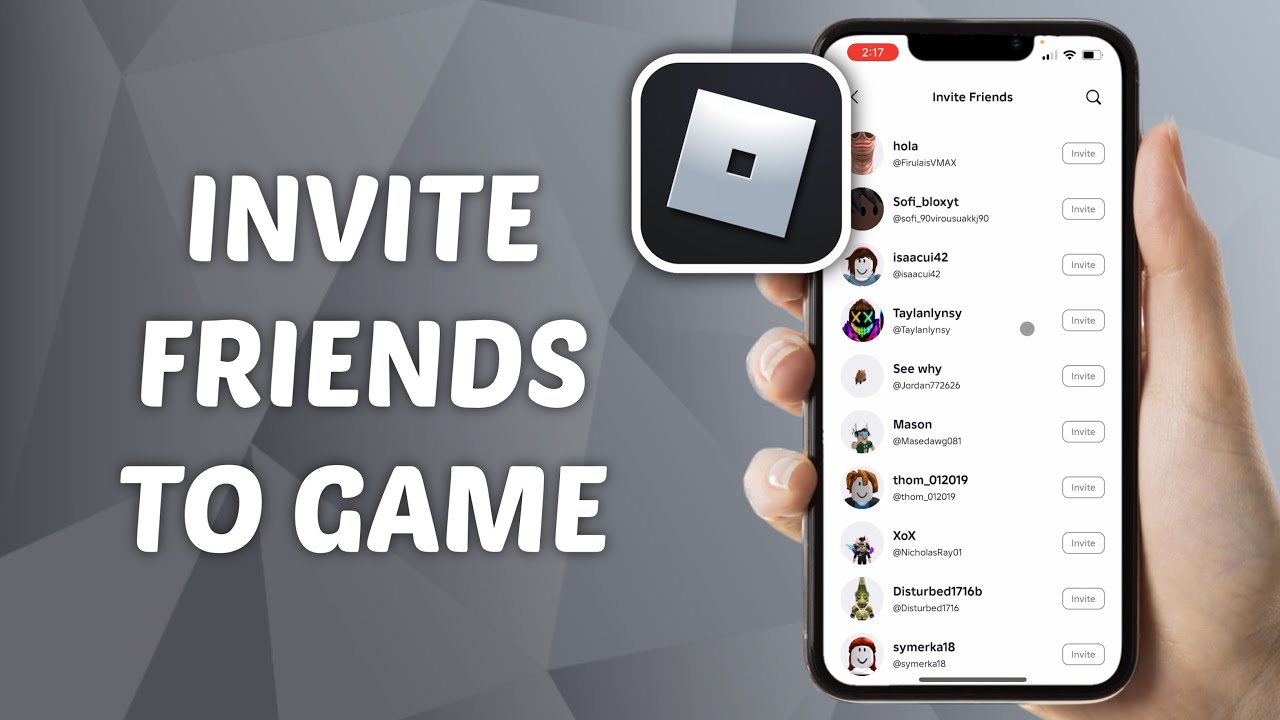

How To Invite Friends To Roblox Games YouTube . HOW TO INVITE FRIENDS ON ROBLOX Riencyll Cabile YouTube . How To MAKE A Friend INVITATION System In Roblox Studio YouTube . How To Invite Friends To A Game On Roblox Mobile YouTube . How To Invite Friends To A Game In Roblox New Way YouTube


How To Make An INVITE FRIENDS BUTTON In ROBLOX STUDIO YouTube . How To Make Custom Invite Friends Gui Art Design Support Developer . How To Add Friends In Roblox Roblox How To Add Friends 8 1 466x320 . How To Invite A Friend To Experience In Roblox Easy Tutorial YouTube . How To Make A INVITE FRIEND GUI In ROBLOX Studio Roblox Studio

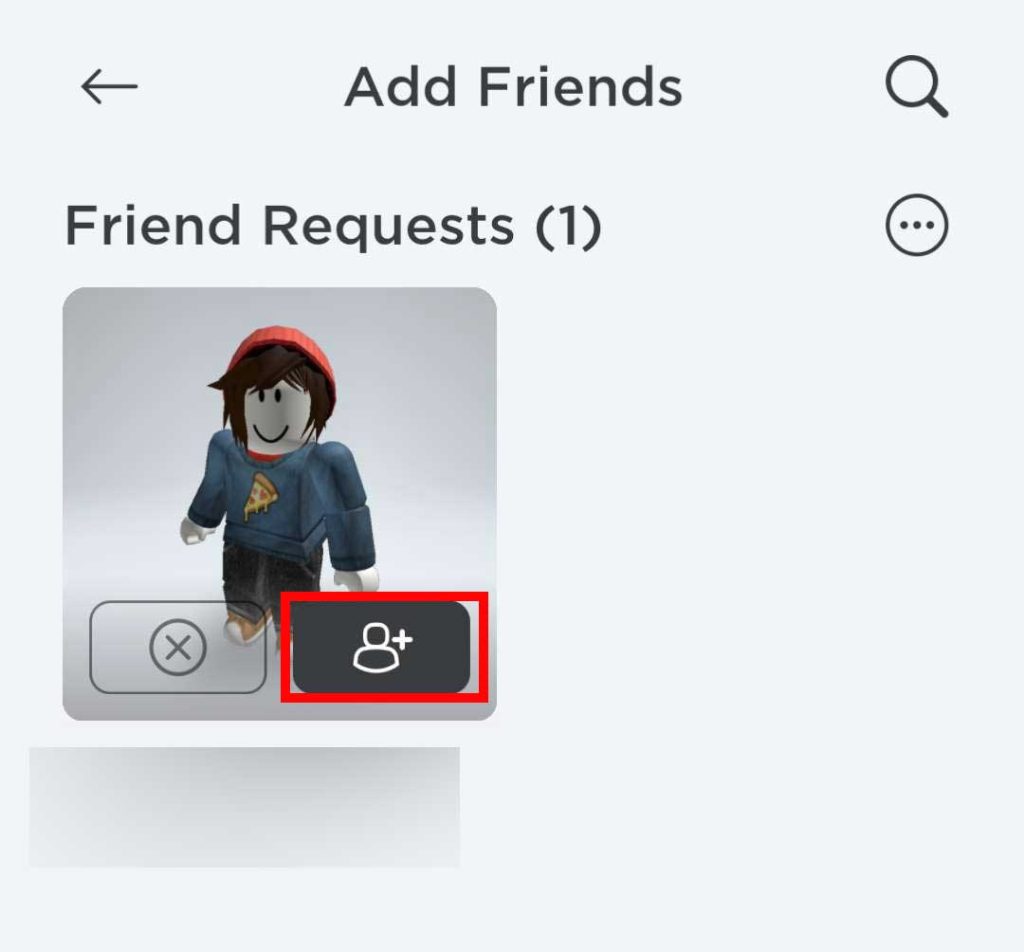


How To Add Someone To Team Create In Roblox Studio 2026 Invite . How To Add People Roblox Easily Your 2026 Guide Add Friend Icon 1024x952 . How To Make An Invite Friends Button In Roblox Studio YouTube Hqdefault . How To Invite Friends On Roblox On PC Step By Step YouTube . How To Invite Friends To A Game In Roblox 2025 New Update Play Roblox




How To Invite Friends To Experience In Roblox PC Mobile Easy Guide . How To Invite Friends In Roblox PC YouTube . How You Can Invite Your Friends On Roblox Studio Using Team Create Roblox DXGI Error Kopie.webp. HOW TO INVITE FRIENDS IN ROBLOX YouTube . How To Invite Friends To Team Create In Roblox Studio YouTube


3 Ways To Add Friends On Roblox WikiHow Aid596613 V4 728px Add Friends On Roblox Step 4 . HOW TO INVITE YOUR FRIENDS ON A GAME IN ROBLOX STUDIOS 2021 YouTube Hqdefault . HOW TO MAKE A INVITE BUTTON TO INVITE PEOPLE TO YOUR ROBLOX GAME Hqdefault . How To Invite Friends To Roblox Easiest Way YouTube . How To Add Roblox Friend Invite Popup In Your Roblox Game Roblox Hqdefault


How To Add Friends On Roblox Quick And Easy YouTube . How To Invite Friends To Roblox Tutorial YouTube . How To Add Friends On Roblox 2026 YouTube Hqdefault . How To Add Friends On Roblox PC And Console V4 460px Add Friends On Roblox Step 7 . How To Add Friends On Roblox 2026 YouTube



How To Invite Friends To A Game On Roblox Mobile YouTube . How To Make A FRIEND INVITER Button Roblox Studio YouTube . How To Allow Friends To Join Your Roblox Private Server In 2024 YouTube . How To Invite Friends To A Game On Roblox YouTube . How To Add Friends On Roblox Tutorial YouTube