This comprehensive guide provides step-by-step instructions on how to change your skin color in Roblox in 2026, helping both new and experienced players customize their avatar to stand out or blend in with the latest trends. Roblox continues to be a social hub for millions of gamers, with avatar customization being a core part of its appeal. Whether you are aiming for a classic look, a unique style for a roleplay game, or simply want to refresh your appearance, understanding the options available for skin color is essential. We will cover the free methods available directly within the Roblox avatar editor, as well as briefly touch upon advanced customization techniques that might involve catalog items. Many busy gamers, balancing work and family, appreciate quick, clear guides to help them get the most out of their limited gaming time without hassle. This article ensures you can effortlessly update your avatar, keeping your virtual self as fresh as your gaming experience. Dive into the world of Roblox personalization and make your avatar truly yours.
How do I change my character's skin color in Roblox?
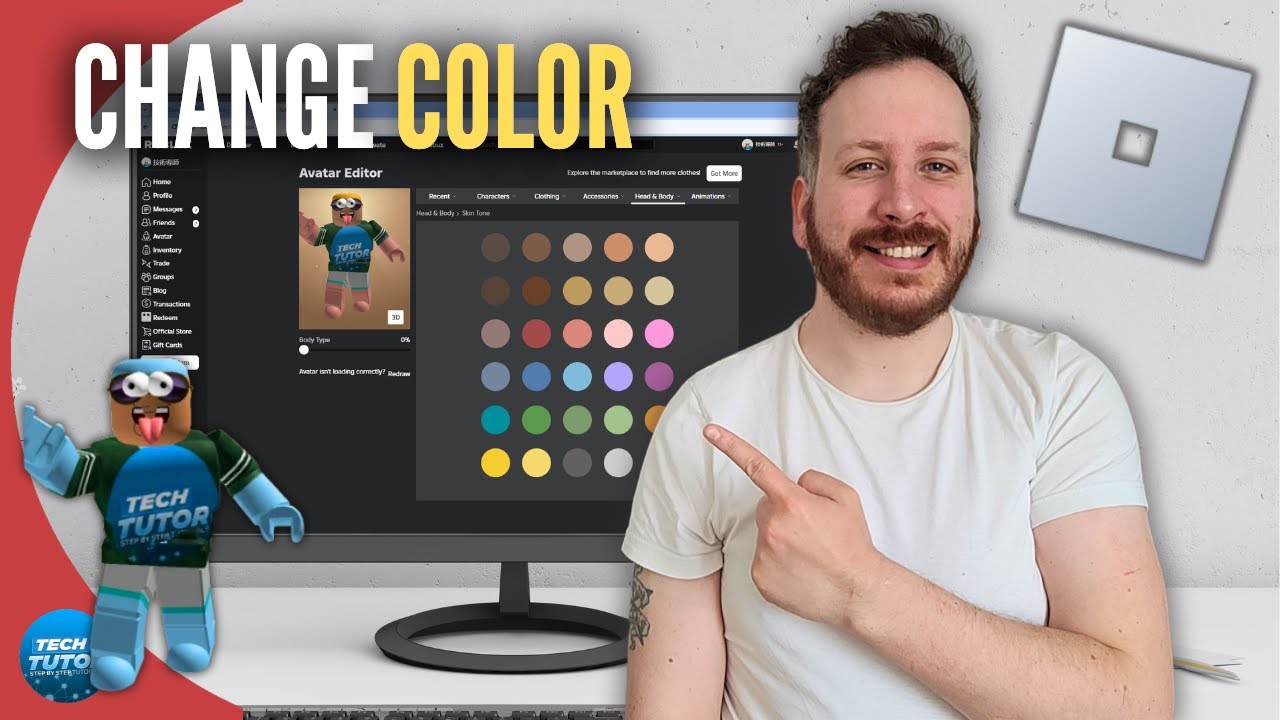
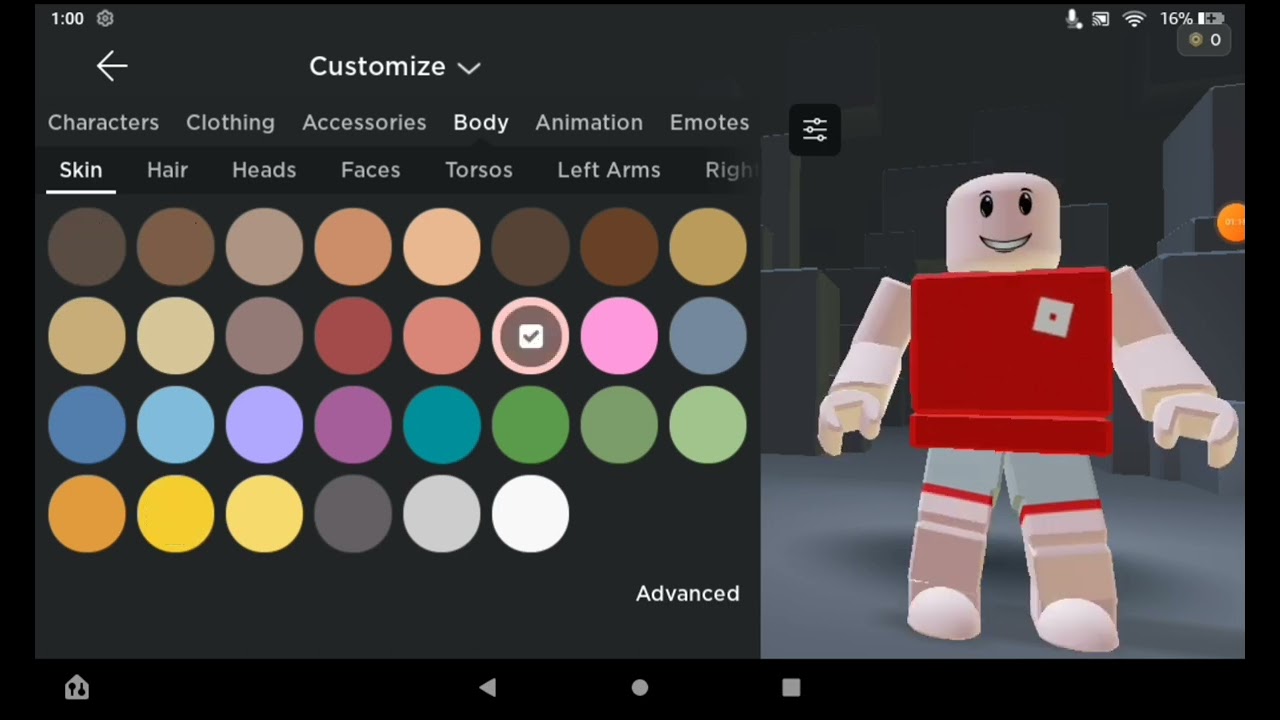
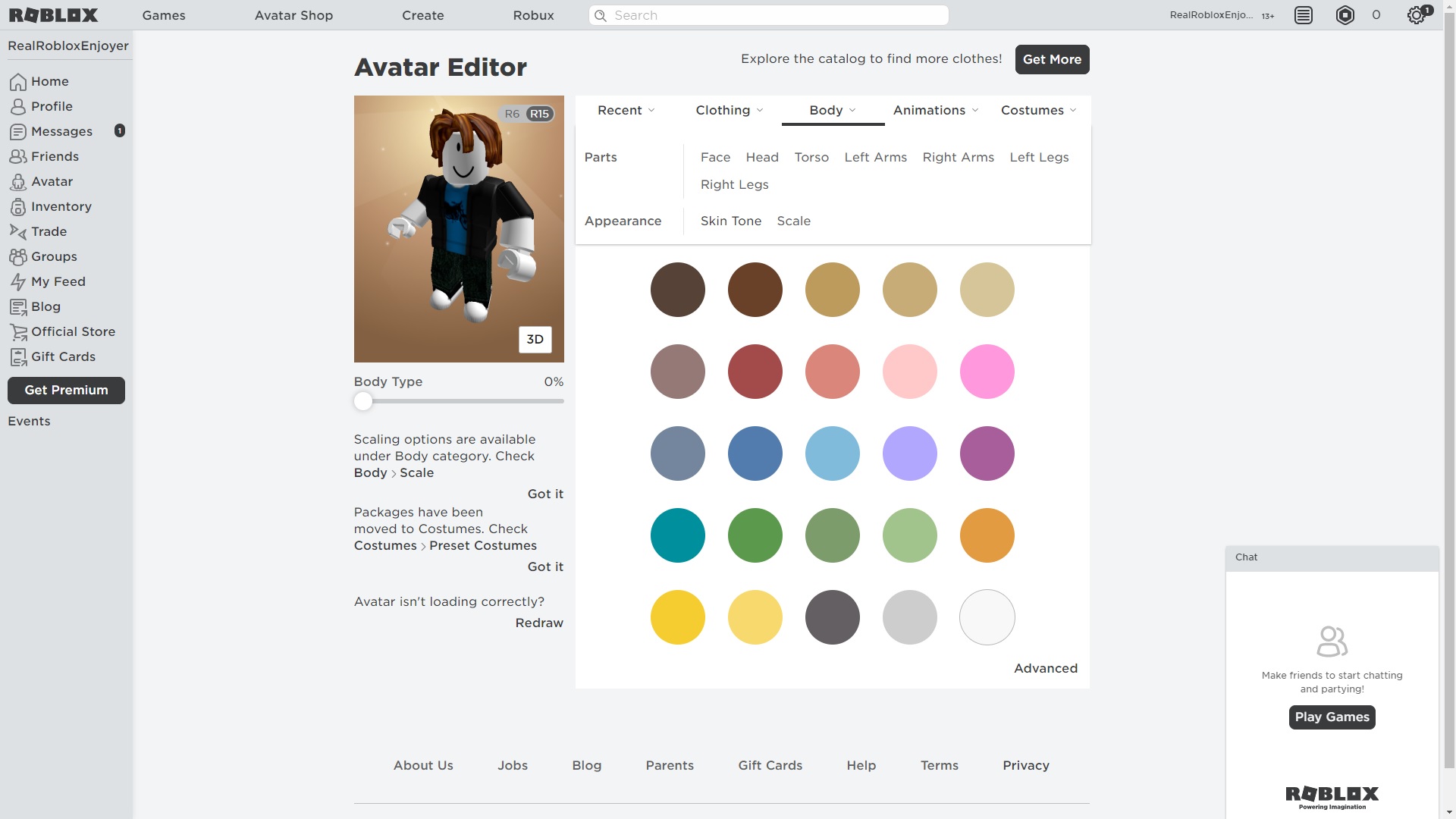
To change your Roblox character's skin color, navigate to the Avatar Editor either through the Roblox website or the mobile app. From there, select the 'Body' tab, then 'Skin Tone'. You'll find a palette of default colors, and often an 'Advanced' option for a wider selection or to color individual body parts. Simply click your desired color, and your avatar will update instantly. Remember to save your changes before exiting.
Where is the Avatar Editor located in Roblox?
The Avatar Editor is easily accessible on the Roblox platform. On the website, it's typically found by clicking the three lines (menu icon) on the top left, then selecting 'Avatar'. On the mobile app, tap the avatar icon at the bottom of the screen to enter the editor. This central hub allows you to customize all aspects of your character, including clothing, accessories, body parts, and crucially, skin tone.
Can I change specific body parts to different colors in Roblox?
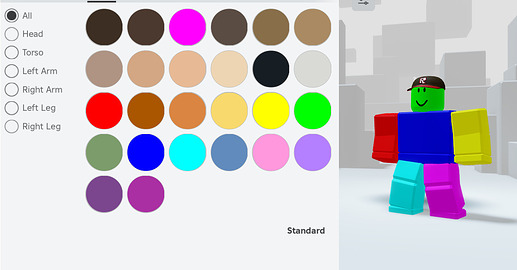
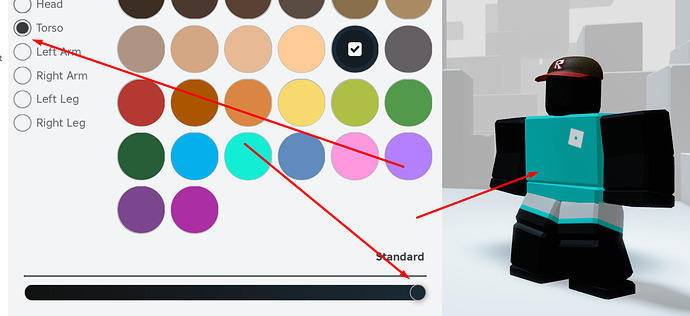
Yes, Roblox offers an advanced feature that allows you to color individual body parts differently. Within the Avatar Editor's 'Skin Tone' section, look for an 'Advanced' button. Clicking this reveals options to select specific body parts like the head, torso, or left arm, and apply a unique color to each. This enables highly personalized and often creative avatar designs, letting you craft truly unique looks.
Are all skin color options free in Roblox?
Yes, generally all basic and advanced skin color options provided directly through the Roblox Avatar Editor are completely free. You do not need Robux to change your character's skin tone. While some clothing or accessories might cost Robux, customizing your core body color is a fundamental, accessible feature for all players, aligning with Roblox's free-to-play model for basic customization.
What should I do if my skin color changes aren't saving or appearing?
If your skin color changes aren't saving, first ensure you've clicked the 'Done' or 'Save' button in the Avatar Editor. Sometimes, a simple refresh of the page or restarting the Roblox application can resolve display issues. Check your internet connection. Rarely, a browser cache or app data clear might be needed. If issues persist, Roblox's support page often has troubleshooting tips for avatar customization problems.
Why would a gamer want to change their skin color in Roblox?
Gamers change their skin color in Roblox for various reasons, reflecting personal expression and roleplaying. It allows players to create avatars that mirror their real-life appearance, experiment with fantasy characters for specific game genres, or simply refresh their look to match new outfits or trends. Customizing skin color enhances immersion and social interaction, making the avatar feel more unique and connected to the player's identity.
Does changing skin color affect gameplay or performance in Roblox?
No, changing your skin color in Roblox has absolutely no impact on gameplay, performance, or character abilities. It is purely a cosmetic customization feature. Your chosen skin tone will not give you any advantages or disadvantages in any Roblox game. It's solely for aesthetic personalization, allowing you to express yourself visually without altering the game mechanics or your character's in-game statistics.
Are you a seasoned gamer who just logged into Roblox after a long week, only to realize your avatar feels a bit stale? Or maybe you are new to a popular roleplay experience and want your character to truly fit in or stand out? For many of us balancing work, family, and a precious few hours of gaming each week, customizing our in-game identity is a quick, satisfying way to refresh our virtual escape. Roblox, with its immense popularity and endless worlds, understands this need for personalization better than most platforms. It is more than just a game; it is a social space where your avatar is your digital self. And let us be honest, who does not want to look their best, even virtually? With 87% of US gamers engaging regularly, often for 10+ hours a week, and mobile gaming continuing its dominance, an easy, accessible way to express yourself is key. This month, we are seeing a huge surge in players experimenting with unique aesthetics, from cozy cottagecore looks to vibrant cyberpunk styles, all starting with their base appearance.
You might be thinking, how do I actually change my skin colour in Roblox? Is it free? Are there advanced options? You are not alone. Many gamers, especially those who dip in and out of different titles, often miss the subtle updates or forget the exact steps for core customization. This guide is designed for you. We will walk you through the entire process, from basic full-body color changes to advanced individual limb customization, ensuring your avatar always reflects your current mood or the latest trend without costing you a dime. Get ready to transform your Roblox persona with ease, freeing up more time for what truly matters: relaxing, having fun, and connecting with friends online.
How to change your skin colour in Roblox?
Changing your skin color in Roblox is a fundamental aspect of avatar customization and is surprisingly simple. This process is entirely free and accessible to all players, whether you are on a PC, Mac, or mobile device. The key is knowing where to find the Avatar Editor and navigating its intuitive interface. Your skin color is a core part of your avatar's identity, allowing for quick changes to match outfits, roles, or simply your preference.
Here is a step-by-step guide to effortlessly update your Roblox avatar's skin tone:
- Log in to your Roblox account: Use either the Roblox website or the Roblox mobile app. The process is very similar across both platforms.
- Access the Avatar Editor: On the website, click the three horizontal lines (menu icon) in the top-left corner, then select 'Avatar'. On the mobile app, tap the avatar icon at the bottom of the screen.
- Navigate to 'Body': Once in the Avatar Editor, look for a tab or section labeled 'Body' or 'Body Parts'. Click or tap on it.
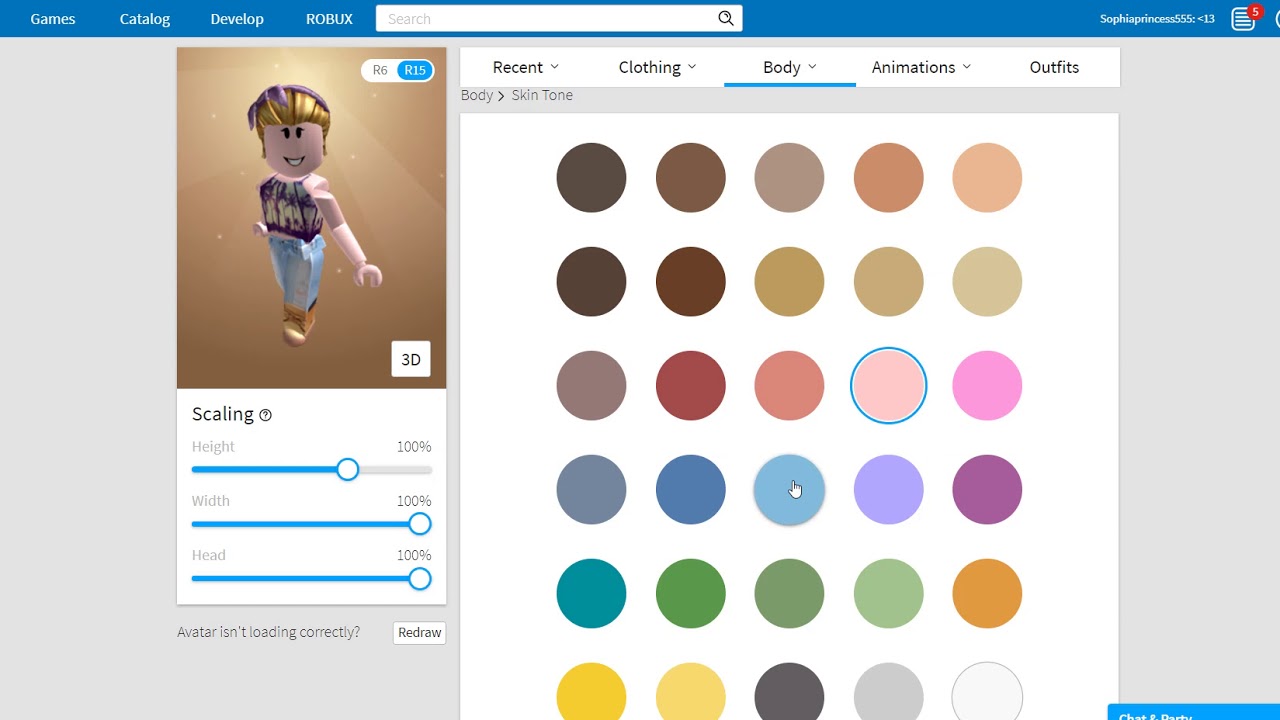
- Select 'Skin Tone': Within the 'Body' section, you will see an option for 'Skin Tone'. Click on this to open the color palette.
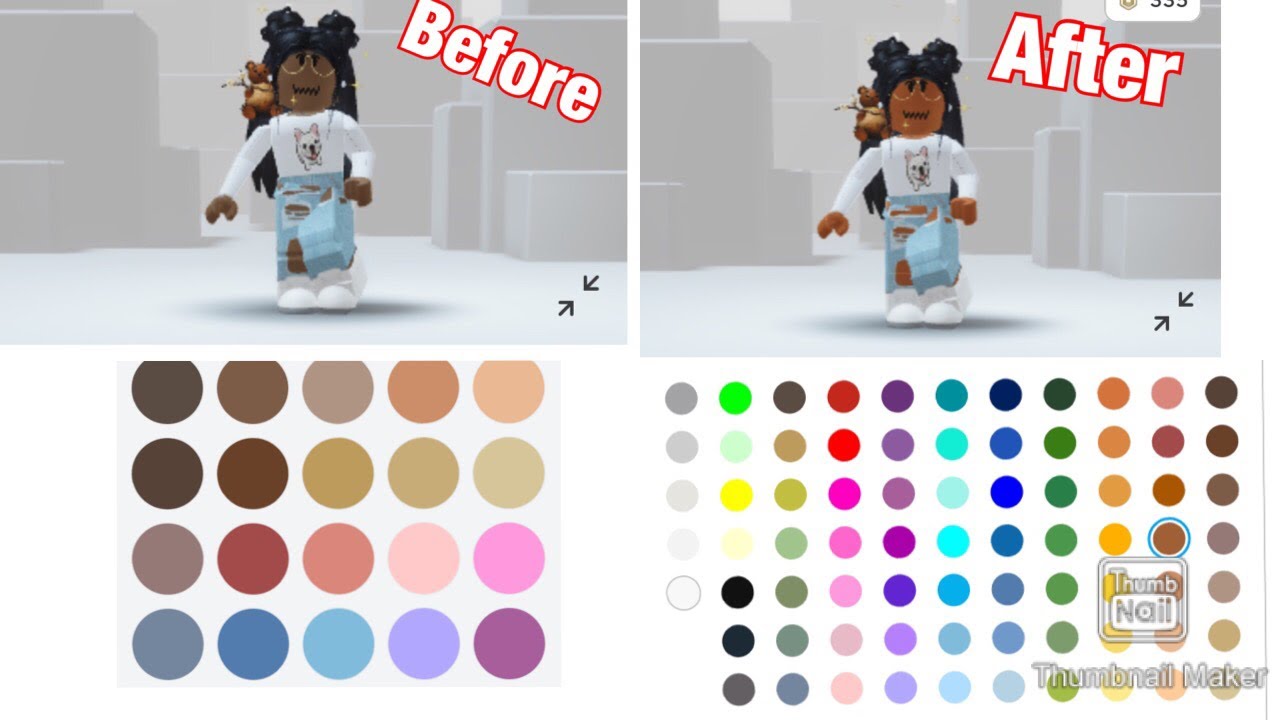
- Choose your desired color: A wide array of standard colors will be presented. Simply click or tap on the color you wish to apply to your avatar. Your avatar preview will update instantly.
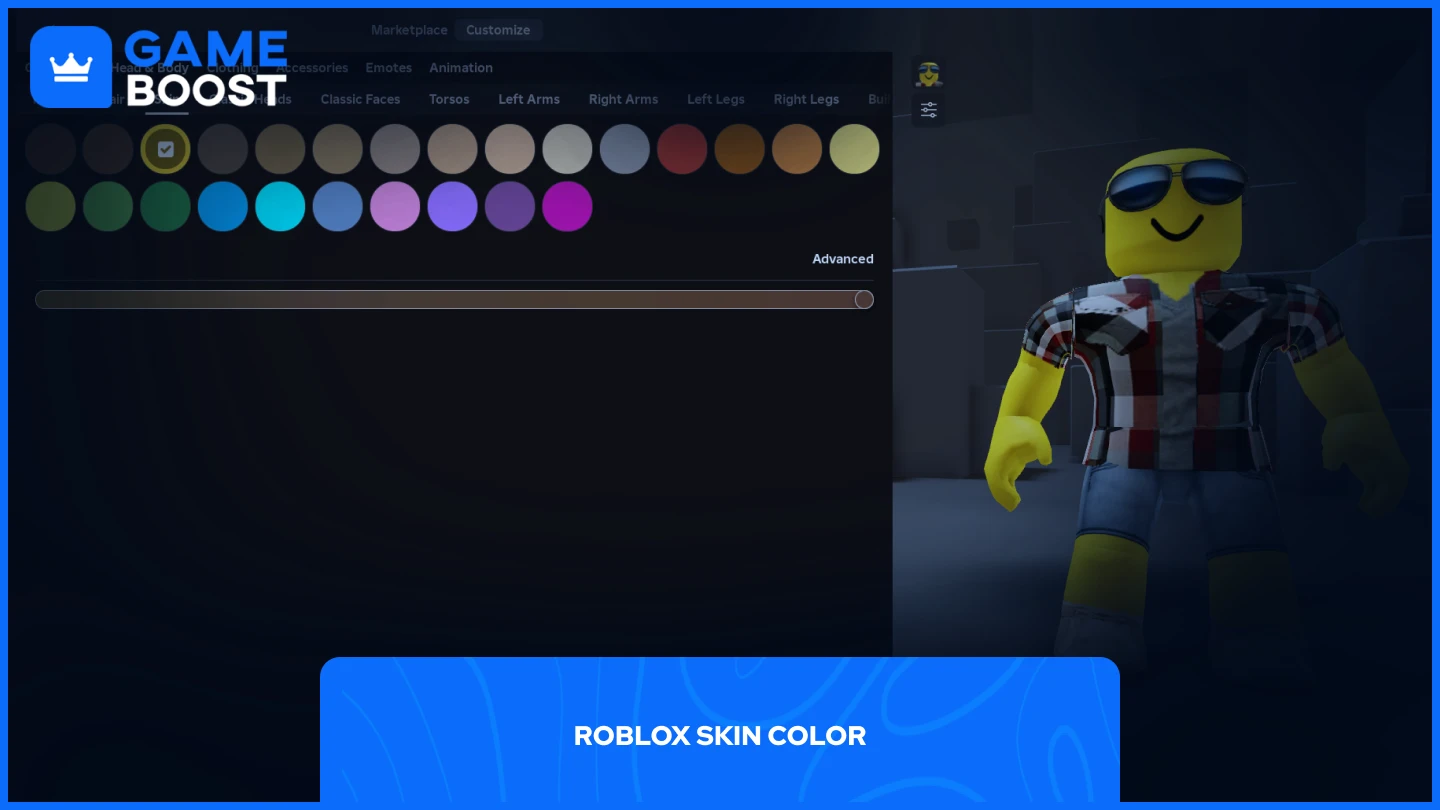
- (Optional) Use 'Advanced' options: If you want more granular control, such as coloring individual body parts differently, look for an 'Advanced' button (often located below the main color palette). This opens up a new menu for detailed customization.
- Save your changes: After selecting your desired skin tone(s), ensure you click 'Done' or 'Save' to apply the changes permanently to your avatar. Your new look will now be visible across all Roblox experiences.
This straightforward process ensures that personalizing your avatar is quick and hassle-free, letting you dive back into games without delay.
Where can I find the Avatar Editor to change my skin color?
The Avatar Editor is the central hub for all your Roblox character customization needs, including changing your skin color. It is designed to be easily accessible so you can update your look anytime, anywhere. Knowing its location is the first step to personalizing your gaming experience.
Here is how to locate the Avatar Editor on different platforms:
- On the Roblox Website (PC/Mac): After logging in, look for the three horizontal lines (often called a 'hamburger menu') in the top-left corner of the screen. Click on it to open the navigation sidebar. From this menu, select the option labeled 'Avatar'. This will take you directly to the Avatar Editor page.
- On the Roblox Mobile App (iOS/Android): Once you open and log into the Roblox app, you will see a series of icons at the bottom of your screen. Tap the icon that looks like your current avatar, usually positioned in the center or right. This will open the Avatar Editor interface directly within the app.
Both methods lead to the same comprehensive editor where you can adjust everything from clothing and accessories to body shape and, of course, your skin tone. Roblox has made it incredibly convenient, understanding that players, especially busy adults, need quick access to customization features to make their limited gaming time more impactful.
Can I change individual body parts' colors in Roblox?
Absolutely! Roblox offers an 'Advanced' option within the Skin Tone editor that allows for highly detailed customization, letting you color individual body parts differently. This feature is a game-changer for creative players who want to go beyond a single, uniform skin tone. It opens up possibilities for unique character designs, multi-toned avatars, or even characters that blend different shades for artistic effect.
To access and utilize this advanced feature:
- Follow the initial steps to reach the 'Skin Tone' section in the Avatar Editor (as described in the first question).
- Once the main skin tone palette appears, look for an 'Advanced' button. It is typically a smaller button located beneath the main color grid. Click or tap this button.
- A new interface will appear, showing a list of individual body parts: Head, Torso, Left Arm, Right Arm, Left Leg, and Right Leg.
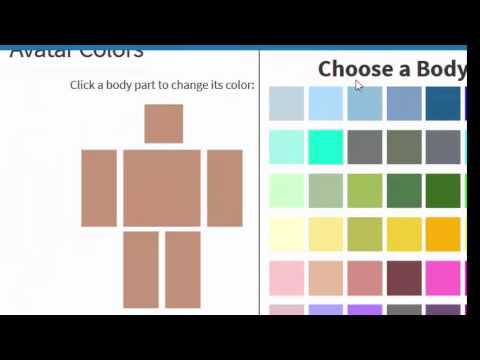
- Click on each body part you wish to color individually. A separate color palette will appear for that specific part.
- Choose the desired color for that body part. Repeat this process for all parts you want to customize.
- Once you are satisfied with your individual part coloring, click 'Done' or 'Save' to apply all the changes to your avatar.
This advanced functionality is a testament to Roblox's commitment to player creativity, allowing for truly unique and expressive avatars that can match almost any roleplay scenario or personal aesthetic you can imagine. It is particularly popular among players who engage in complex roleplaying games or want to create avatars for specific themed events.
Are there any costs associated with changing skin color in Roblox?
One of the best aspects of changing your skin color in Roblox is that it is completely free. Roblox prioritizes basic avatar customization, making core features like skin tone changes accessible to everyone, regardless of whether they spend Robux or not. This aligns with the platform's free-to-play model, ensuring that every player can personalize their experience from the get-go.
You will not need any Robux, premium subscriptions, or special passes to access the full range of skin color options, including the advanced feature for individual body parts. This is a significant relief for many gamers who are mindful of their budget, especially those balancing gaming with real-world financial responsibilities. While there are countless items in the Roblox catalog that cost Robux, such as clothing, accessories, and animations, your avatar's fundamental appearance, like its skin color, remains a free tool for self-expression.
This accessibility is a key reason why Roblox continues to be a favorite among players across all demographics. It empowers users to create and recreate their digital identity without financial barriers, fostering a more inclusive and creative community. So go ahead, experiment with colors, and update your look as often as you like without worrying about your wallet!
What if my custom skin color doesn't show up in a game?
It can be frustrating when you spend time perfecting your avatar's skin color, only for it not to appear correctly in a game. While this is rare, it can happen. For busy gamers, troubleshooting quickly is essential to get back into the fun. Most of the time, these issues are minor and easily resolved.
Here are common reasons and solutions if your custom skin color isn't showing up:
- Did You Save?: The most common oversight is forgetting to click 'Done' or 'Save' in the Avatar Editor after making your changes. Always double-check this step.
- Refresh the Game/Application: Sometimes, a simple refresh of the Roblox game page (on PC) or restarting the Roblox app (on mobile) can force it to load your most recent avatar configuration.
- Clear Cache and Cookies (Website): If you are using the Roblox website, your browser's cache or cookies might be storing an older version of your avatar. Clearing these can often fix display issues. (Remember to back up any important login info if doing a full clear).
- Internet Connection Issues: A poor or unstable internet connection can sometimes prevent your avatar data from fully loading or updating. Ensure you have a stable connection.
- Game-Specific Overrides: Very rarely, some highly customized Roblox experiences (games) might have their own avatar systems that temporarily override your default Roblox avatar's appearance. This is usually part of the game's design, perhaps to fit a specific aesthetic or role. Check if other players in that game also have unusual appearances or if your avatar looks normal in other games.
- Roblox Server Issues: On very rare occasions, Roblox itself might be experiencing temporary server issues that affect avatar loading. You can check Roblox's official status page or social media for any announcements.
By systematically going through these steps, you can typically resolve any display issues and get your perfectly colored avatar back into the action.
How do I save my new Roblox avatar appearance?
Saving your new Roblox avatar appearance, including your chosen skin color, is a crucial final step after any customization. Without saving, all your hard work on personalizing your character will be lost when you exit the Avatar Editor. Fortunately, Roblox makes this process very intuitive, designed for efficiency so you can spend less time tinkering and more time playing.
Here is how to ensure your new look is permanently saved:
- Locate the Save Button: After you have made all your desired changes in the Avatar Editor, including selecting your skin tone and any individual body part colors, look for a prominent button that says 'Done' or 'Save'. This button is usually located at the bottom of the Avatar Editor interface, or sometimes in the top right corner, depending on whether you are on the website or mobile app.
- Click or Tap: Simply click or tap this 'Done' or 'Save' button.
- Confirmation: In most cases, the editor will briefly confirm that your avatar has been updated. You might see a small notification or the button might grey out for a moment, indicating the changes are applied.
Once you have saved, your avatar's new skin color and any other customizations will be active across your entire Roblox account. This means your character will appear with the updated look in any Roblox game you join, on your profile page, and to other players. It is a simple but vital step that ensures your personalized identity is ready for all your adventures.
What are some popular Roblox skin color trends for 2026?
In 2026, Roblox avatar customization, particularly skin color, is heavily influenced by social media trends, popular in-game aesthetics, and the broader gaming community's desire for expression. Gamers, especially those aged around 36 who balance life with gaming, look for ways to stay current without chasing every fleeting hype. We are seeing a blend of nostalgia, minimalism, and vibrant self-expression dominate the scene.
Current trends include:
- Natural & Diverse Tones: Reflecting a broader societal push for representation, many players opt for a wider range of naturalistic skin tones that mirror real-world diversity. These are often used in roleplay games for realistic character creation.
- Pastel & Muted Palettes: Following the 'cozy gaming' and 'aesthetic' trends, soft pastel blues, pinks, greens, and muted earth tones are very popular. These create calming, approachable avatars suitable for social hubs and less competitive games.
- Vibrant & Neon Accents: For those looking to stand out, especially in more action-oriented or futuristic games, bright neon colors and highly saturated tones are often used, sometimes with the advanced editor to create contrasting limbs or a cyberpunk vibe. Think electric blues, hot pinks, and lime greens.
- Monochrome & Gradient Effects: Advanced users are experimenting with subtle gradients using the individual body part coloring, creating smooth transitions between similar shades. Monochrome looks, using different shades of a single color (e.g., various shades of grey or blue), are also chic for a minimalist yet striking appearance.
- Themed Colors: With the rise of influencer-led trends and major game updates, specific color combinations tied to popular culture or in-game events frequently emerge. For example, colors matching a popular anime character or a trending aesthetic from TikTok could become widely adopted for a month.
These trends highlight the dynamic nature of Roblox customization, showing that players are constantly evolving their looks to stay fresh and relevant within the ever-expanding metaverse. Keeping an eye on what popular creators are doing can offer great inspiration.
Can I use mobile to change my Roblox skin color?
Yes, absolutely! Changing your Roblox avatar's skin color is fully supported and just as easy on mobile devices (iOS and Android) as it is on a computer. Roblox has meticulously designed its mobile application to offer a seamless and complete customization experience, recognizing that a significant portion of its 87% regular gamer base, especially the 36-year-old average, often interacts with the platform on their phones during commutes, breaks, or while relaxing at home.
The process on mobile mirrors the desktop experience:
- Launch the Roblox App: Open the Roblox application on your smartphone or tablet and log into your account.
- Access the Avatar Editor: Look for the avatar icon (which typically looks like your current character's head or full body) located at the bottom center or bottom right of the app's main screen. Tap this icon.
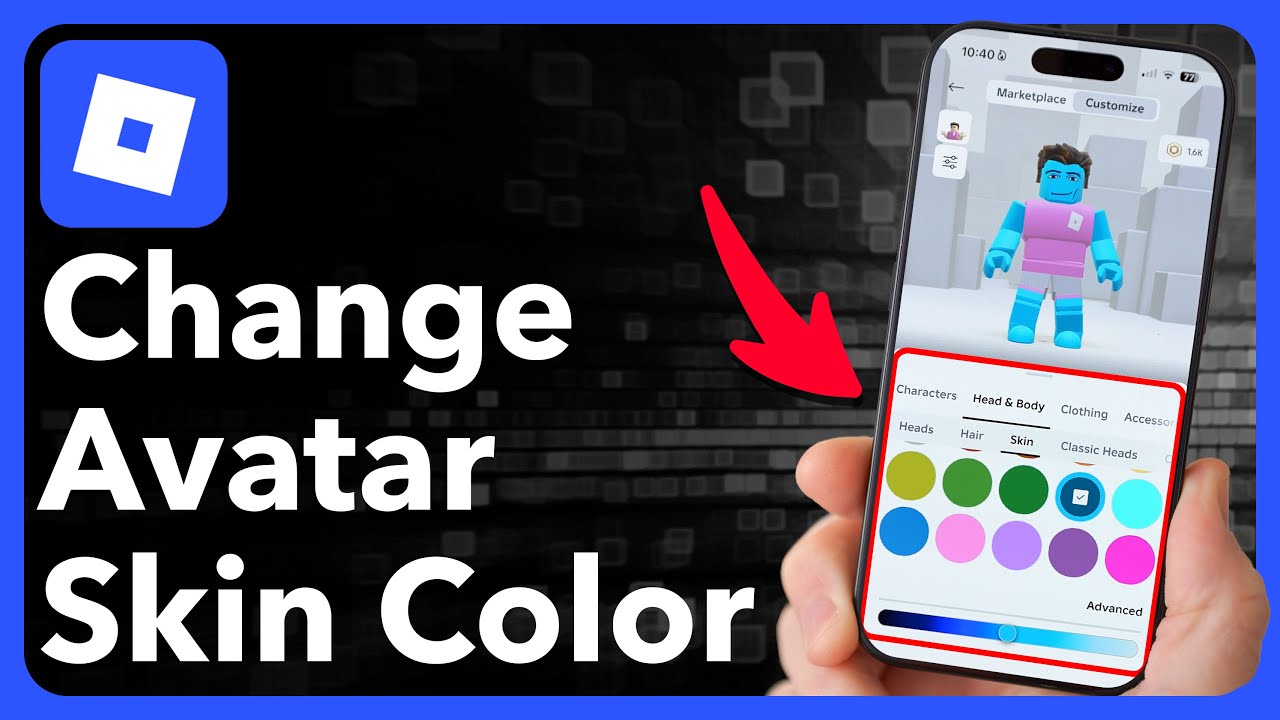
- Navigate to Skin Tone: Within the Avatar Editor, tap on the 'Body' or 'Body Parts' section, then select 'Skin Tone'.
- Choose Your Color: A palette of colors will appear. Tap your desired color. For more detailed customization, look for an 'Advanced' option to color individual body parts.
- Save Changes: Always remember to tap 'Done' or 'Save' to apply your new skin color to your avatar.
The mobile interface is optimized for touchscreens, making it incredibly intuitive and fast. This ensures that even when you have only a few minutes to spare, you can quickly update your look, making your Roblox experience as personal and engaging on the go as it is at home on your PC.
Changing your skin color in Roblox is more than just a cosmetic tweak; it is a powerful tool for self-expression and connection within a vibrant global community. As we have explored, whether you are aiming for a subtle refresh or a complete transformation, the process is straightforward, accessible, and completely free. In a world where 87% of US gamers regularly spend significant time online, having control over your digital identity offers a sense of ownership and fun that enhances your overall gaming satisfaction. From quick, full-body color changes to intricate, multi-part designs using the advanced editor, Roblox empowers you to create an avatar that truly represents you, fitting seamlessly into any experience or trending aesthetic of 2026. Do not let a stale avatar hold you back from fully enjoying your virtual adventures.
What is your biggest gaming challenge when it comes to personalization or staying current? Comment below and share your tips!
FAQ Section
How often can I change my skin color in Roblox?
You can change your skin color in Roblox as often as you like, without any restrictions or cooldowns. It is a completely free and unlimited customization option, allowing you to update your avatar's appearance whenever you feel like a change or want to match a new outfit or game aesthetic.
Do game passes affect skin color options?
No, game passes do not affect the available skin color options in Roblox. Skin color customization is a core, free feature of the platform's Avatar Editor, independent of any in-game purchases or passes. Game passes typically unlock specific in-game advantages or items within particular Roblox experiences, not platform-wide avatar features.
Is it possible to have a multicolored skin tone?
Yes, it is possible to have a multicolored skin tone using the 'Advanced' option within the Skin Tone section of the Avatar Editor. This feature allows you to select and color individual body parts (head, torso, arms, legs) with different colors, enabling highly creative and multi-toned avatar designs.
Will my skin color change on all devices?
Yes, once you save your skin color changes in the Roblox Avatar Editor, your updated avatar appearance will automatically synchronize and be visible across all devices you use to access Roblox, including PC, Mac, iOS, and Android. Your avatar's look is tied to your account, not a specific device.
Why cant I find the advanced color options?
If you cannot find the advanced color options, ensure you are in the 'Skin Tone' section of the Avatar Editor. The 'Advanced' button is typically a smaller button located below the main color palette. If it is still missing, try refreshing your browser or restarting the Roblox app; very occasionally, a display glitch can occur.
Are there any age restrictions for certain colors?
No, there are no age restrictions for any specific skin colors in Roblox. All colors available in the Avatar Editor are accessible to all players, regardless of their age or account settings. Roblox aims to provide universal customization options for all users to express themselves freely.
Easy step-by-step guide to changing Roblox skin color. Utilize free avatar editor options. Understand body part color customization. Learn about advanced Roblox customization tips. Keep your avatar current with trends.
35


How To Change Your Skin Tone In Roblox YouTube . How To Change Skin Color In Roblox 2025 YouTube . How To Change Roblox Avatar Skin Color Step By Step Tutorial YouTube . How To Change Skin Color Tone In Roblox PC YouTube . Roblox Skin Tone Express Yourself 2 517x270


ROBLOX How To Change Skin Color YouTube . How To Change Roblox Avatar Skin Color YouTube . How To Change Skin Color In Roblox Quick Guide YouTube . How To Change Skin Color In Roblox Mobile YouTube . Roblox Colour Change



How To Change Skin Color In Roblox 2025 Customize Your Avatar . How To Change Your Roblox Character Skin Color In 2025 YouTube . How To Change Skin Color In Roblox Mobile ROBLOX Tutorial 2025 . How To Customize Avatar On Roblox Apps Roblox . How To Change Skin Color In Roblox YouTube


Roblox Avatar Color Picker 2 690x316 . What Is The Color Code In Who Was It Roblox At Carisa Macaulay Blog . Roblox Colour Change . ROBLOX Tuturial How To Change The Colour Of Your Skin YouTube Hqdefault . Roblox Skin Tone Express Yourself How Do I Change My Skin Color On Roblox


How To Change Your Color Of Your Body Parts In Roblox YouTube . Roblox Studio Change Skin Color Infoupdate Org . Roblox Colour Change Change Skin Color Roblox . How To Change A Players Skin Color With A GUI Roblox Studio YouTube . How To Change Skin Color In Roblox Easy Steps For Custom Avatars


Roblox Colour Change . Change Your Roblox Look A Skin Color Guide . Change Your Roblox Look A Skin Color Guide . Roblox Skin Tone Express Yourself 89565a0e C6dd 4864 8d53. Roblox Skin Switch Look Your Best



How To Get Advanced Skin Colors On Roblox Mobile More Colors For Your . How To Change Your Skin Color In Roblox Step By Step F6d51b01 E4c9 4c48 9918 Webp.webp. OMG You WON T Believe How EASY It Is To Change Your Roblox Skin 2025 . How To Change Your Skin Color In Roblox Easy To Follow YouTube . Roblox Name Change Is Free Possible