Are you encountering frustrating Roblox issues like crashes, endless loading screens, or persistent lag? You are not alone. Many US gamers, balancing busy lives with their passion for play, seek quick, effective solutions to optimize their gaming experience. This comprehensive guide on how to reinstall Roblox is your ultimate resource. We will walk you through every step, from a complete uninstall to a fresh, clean installation on both PC and mobile devices. Whether you're a seasoned player or new to the vibrant world of Roblox, our tutorial will help you troubleshoot common problems, boost performance, and get you back to building, exploring, and socializing with your friends in your favorite experiences without the headache. Reinstalling Roblox often acts as a digital reset button, clearing out corrupted files and resolving stubborn glitches that prevent smooth gameplay. Dive in to reclaim your optimal Roblox adventure.
Q: Why is my Roblox game constantly crashing or lagging?
A: Your Roblox game might be crashing or lagging due to corrupted game files, outdated client installations, or conflicts with other software on your PC. Over time, temporary files can build up, leading to performance degradation. Reinstalling Roblox completely removes these potentially problematic files and replaces them with a fresh, clean version, often resolving these persistent performance issues for a smoother gaming experience.
Q: What are the exact steps to completely remove Roblox before reinstalling on PC?
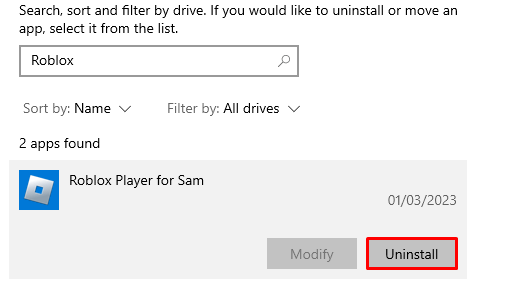
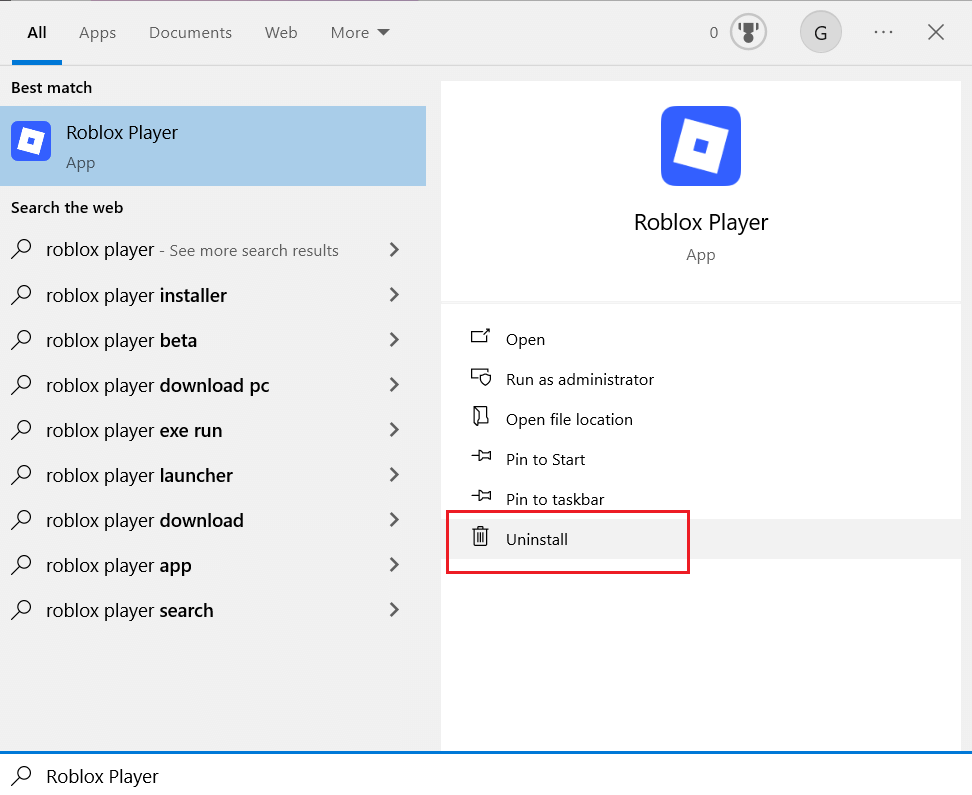
A: To completely remove Roblox from your PC, first close all Roblox applications. Then, go to 'Settings' > 'Apps' > 'Apps & features' (Windows 10/11) or 'Control Panel' > 'Programs and Features' (older Windows), and uninstall both 'Roblox Player' and 'Roblox Studio'. Crucially, manually delete the remaining 'Roblox' folders in your %appdata% and %localappdata% directories to ensure no residual files interfere with the new installation.
Q: Will reinstalling Roblox affect my account's Robux or in-game purchases?
A: No, reinstalling Roblox will not affect your Robux balance, in-game purchases, or any progress tied to your account. All your account-specific data, including Robux, items, and game saves, are stored on Roblox's secure servers, not on your local device. Once you reinstall and log back into your account, all your digital assets and progress will be available as usual.
Q: How do I reinstall Roblox on my Android or iOS device?
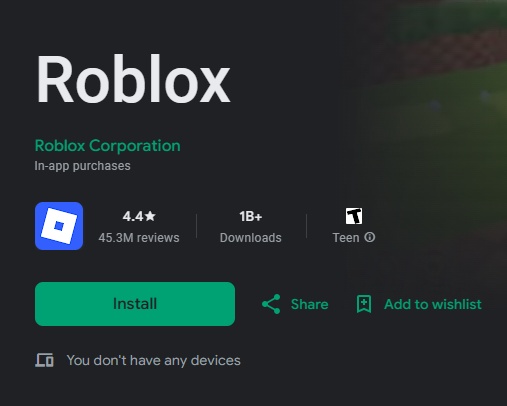
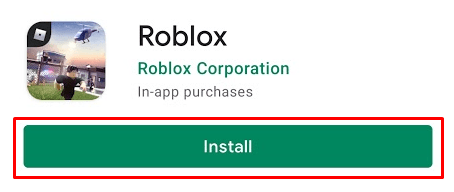
A: Reinstalling Roblox on a mobile device is straightforward. For iOS (iPhone/iPad), simply tap and hold the Roblox app icon until it jiggles, then tap 'Remove App'. For Android, go to 'Settings' > 'Apps' > 'Roblox' and tap 'Uninstall'. After uninstalling, visit your device's App Store (iOS) or Google Play Store (Android), search for 'Roblox', and tap 'Install' to redownload the latest version.
Q: Can a Roblox reinstall fix error messages like 'An error occurred' or 'Roblox has shut down'?
A: Yes, a Roblox reinstall is often the most effective solution for generic error messages like 'An error occurred' or 'Roblox has shut down'. These messages frequently indicate underlying issues with corrupted installation files or client-side errors. By performing a clean reinstall, you replace these potentially faulty components, often resolving the errors and allowing you to play without interruption.
Q: Is it necessary to restart my computer after uninstalling Roblox and before reinstalling?
A: While not strictly mandatory in every case, restarting your computer after a complete Roblox uninstall and before reinstalling is highly recommended. A restart helps clear any lingering processes, temporary files, or cached data from memory, ensuring your system is in a clean state to receive the new Roblox installation without potential conflicts or issues.
Q: What should I do if the Roblox installer itself fails to run or complete?
A: If the Roblox installer fails, first check your internet connection. Ensure you are running the installer as an administrator by right-clicking and selecting 'Run as administrator'. Temporarily disable your antivirus or firewall, as these can sometimes block installations. Also, try downloading the installer again from the official Roblox website, as the original download might have been corrupted. These steps typically resolve installer-related issues.
We all love diving into Roblox after a long day, building incredible worlds, battling it out with friends, or simply relaxing in a cozy game. For many US gamers, gaming is that vital escape, a way to unwind, connect with others, and even build new skills. In fact, current stats for 2026 show that a staggering 87% of US gamers play regularly, often dedicating 10+ hours a week, blending their passion with family and work commitments. But what happens when Roblox decides to act up? When it crashes mid-game, lags endlessly, or refuses to launch at all? It is a common frustration, especially when your precious gaming time is limited.
Instead of throwing your controller (or mouse) in despair, there is often a powerful, straightforward solution: a clean reinstall. Think of it as hitting the reset button on your gaming experience. This guide is built for you, the busy gamer who values efficiency, performance, and getting back to the fun. We will cut through the tech jargon and provide clear, actionable steps on how to reinstall Roblox, ensuring you can troubleshoot those nagging issues and get back to your virtual adventures quickly and smoothly. Let us optimize your Roblox performance and restore your peace of mind.
Why Would I Need to Reinstall Roblox?
Reinstalling Roblox might seem like a drastic step, but it is often the most effective solution for a range of persistent problems that simple restarts or updates cannot fix. Many gamers find themselves facing issues like frequent game crashes, error messages such as 'Roblox has shut down' or 'An error occurred', severe in-game lag, or difficulties launching the client altogether. These problems typically stem from corrupted game files, conflicts with other software, or leftover data from previous installations that interfere with the game's proper functioning. A clean reinstall wipes the slate clean, removing all old, potentially problematic files and installing a fresh, optimized version of the game.
What are the Key Steps to Successfully Uninstall Roblox from My PC?
Performing a complete uninstall is crucial for a successful reinstall. It ensures no corrupted files are left behind. Here is how to do it properly:
- Close Roblox and related processes: Before anything else, ensure Roblox Player and Roblox Studio are completely closed. Open your Task Manager (Ctrl+Shift+Esc), navigate to the 'Processes' tab, and end any tasks related to 'Roblox' or 'RobloxStudio'.
- Uninstall via Control Panel/Settings:
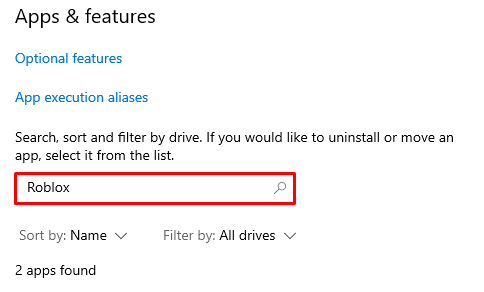
- Windows 10/11: Go to 'Start' > 'Settings' > 'Apps' > 'Apps & features'. Scroll down to find 'Roblox' and 'Roblox Studio', click on each, and select 'Uninstall'. Follow any on-screen prompts.
- Windows 7/8: Go to 'Start' > 'Control Panel' > 'Programs' > 'Programs and Features'. Find 'Roblox' and 'Roblox Studio', right-click, and select 'Uninstall'.
- Delete Residual Files: This is a critical step many miss. Even after uninstalling, some folders might remain. Delete them manually to ensure a truly clean slate.
- Press Windows Key + R to open the Run dialog.
- Type
%appdata%and press Enter. Delete the 'Roblox' folder if it exists. - Go back to
C: aceted-data obloxorC: aceted-data (x86) obloxand delete any remaining 'Roblox' folders. - Type
%localappdata%in the Run dialog and press Enter. Delete the 'Roblox' folder here as well.
- Clear Temporary Internet Files: Sometimes browser cache can interfere. Clear your browser's cache and cookies.
How Do I Reinstall Roblox on My PC After a Clean Uninstall?
Once you have thoroughly uninstalled Roblox, reinstalling is straightforward and typically resolves most issues. Follow these steps:
- Visit the Official Roblox Website: Open your preferred web browser and go to www.roblox.com.
- Log In to Your Account: Sign in with your username and password.
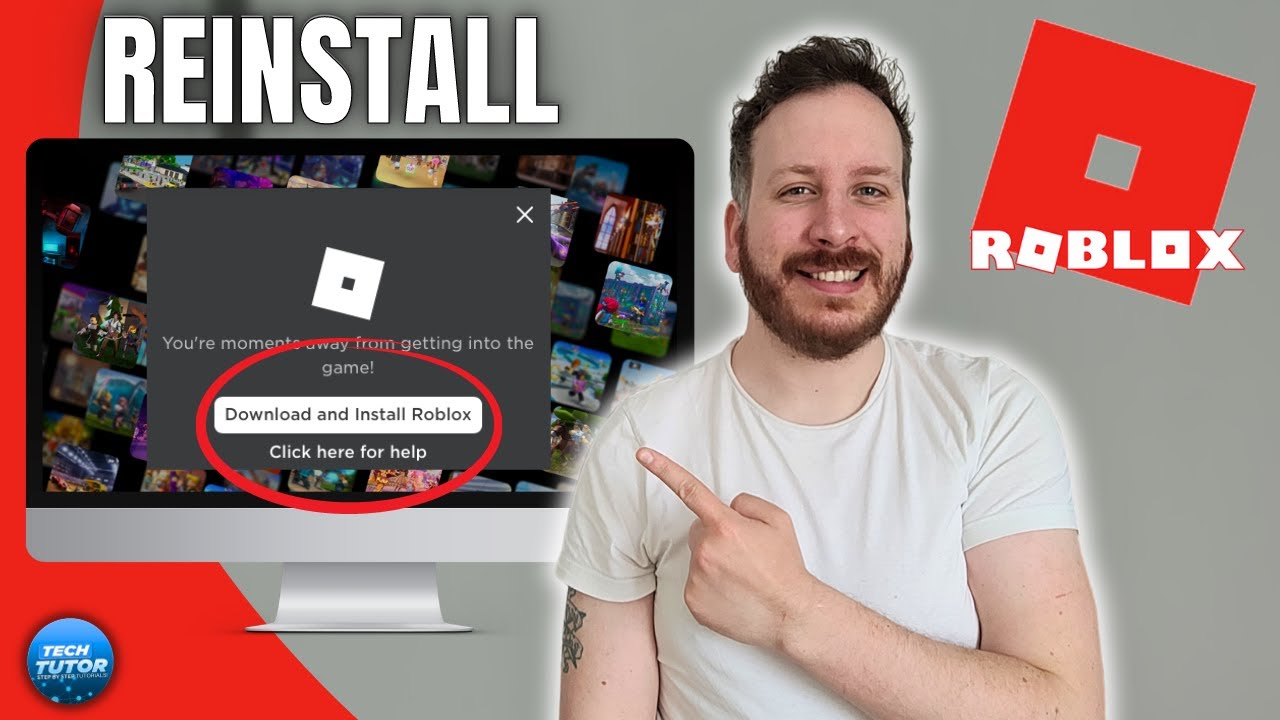
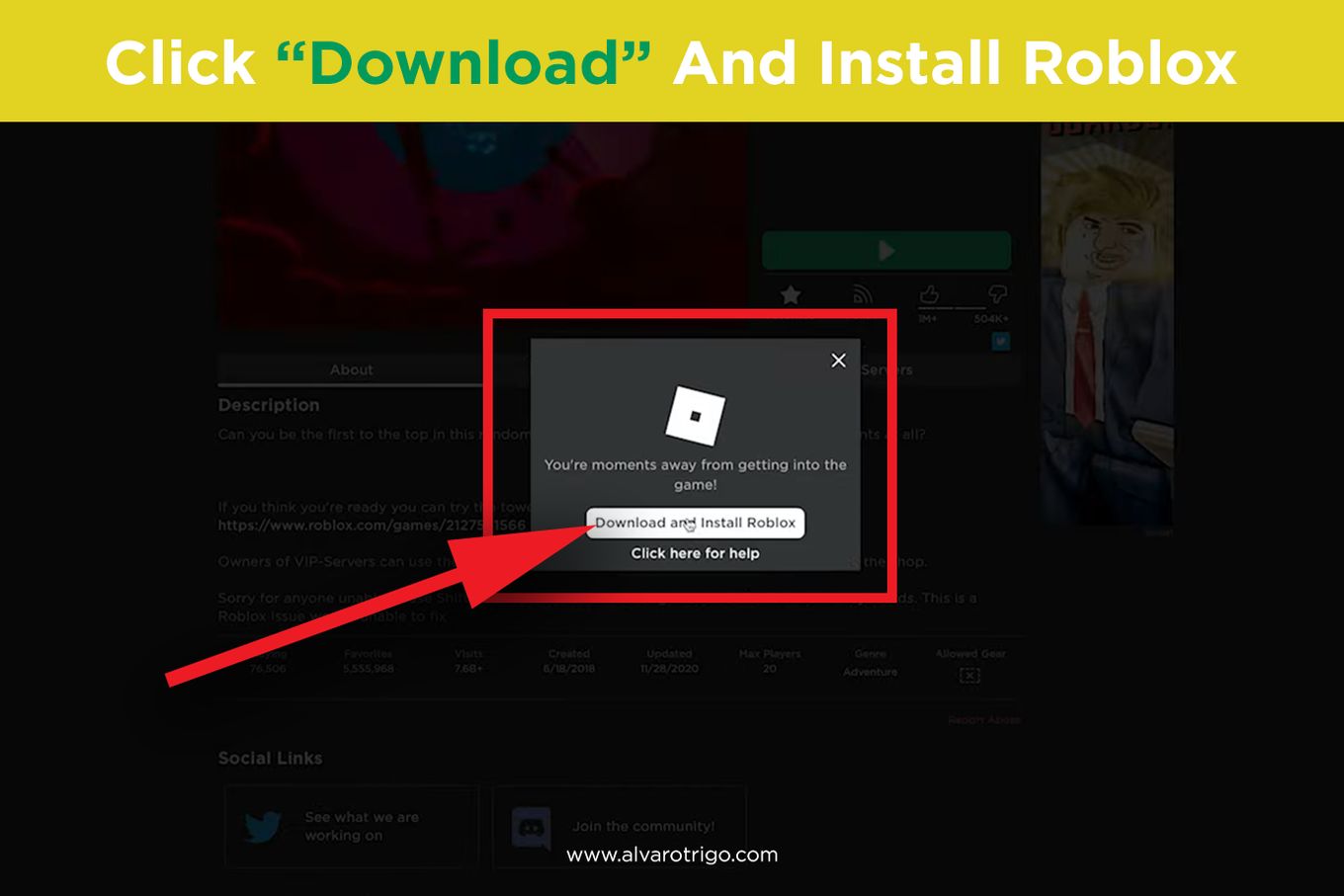
- Join Any Game: Click on any game or experience you wish to play. A pop-up window will appear, prompting you to download and install the Roblox Player.
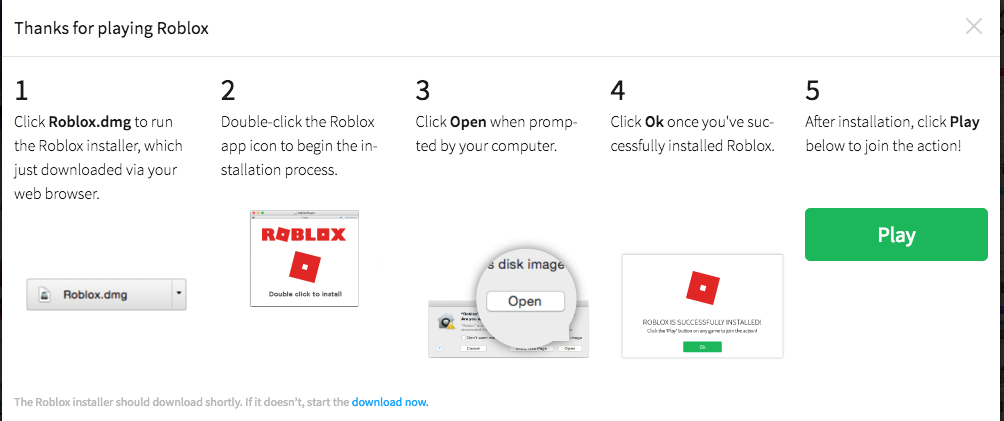
- Download the Installer: Click the 'Download and Install Roblox' button. This will download a small executable file, typically named 'RobloxPlayerLauncher.exe'.
- Run the Installer: Locate the downloaded file (usually in your 'Downloads' folder) and double-click it.
- Follow Installation Prompts: The installer will automatically download the necessary files and install Roblox Player on your computer. Once complete, a confirmation message will appear.
- Launch Roblox: You can now launch Roblox directly from the website by clicking 'Play' on any game, or via the desktop shortcut if one was created.
Can Reinstalling Roblox Fix Common Performance Issues Like Lag and Crashes?
Absolutely, a clean reinstall is one of the most effective troubleshooting steps for performance problems. Corrupted game files, outdated components, or even obscure conflicts can cause significant lag, stuttering, and frequent crashes. By performing a complete uninstall and then installing a fresh copy, you eliminate these potential culprits. Many US gamers who dedicate their limited free time to gaming prioritize smooth performance, and a reinstall often provides that much-needed boost, ensuring stable frame rates and responsive gameplay. It is like giving your gaming setup a fresh, digital tune-up, which is essential for enjoying those popular social games and intense experiences currently trending on Roblox.
Will I Lose My Robux or Game Progress if I Reinstall Roblox?
No, you will not lose your Robux, game progress, or any items you have purchased within Roblox experiences. Your account information, including your Robux balance, created items, game saves, and friendships, are all tied to your Roblox account on the Roblox servers, not to the local installation on your computer or mobile device. When you reinstall Roblox, you are simply replacing the application files. As long as you log back into the same Roblox account, all your progress, Robux, and virtual goods will be there, exactly as you left them. This security means you can reinstall with confidence, knowing your hard-earned achievements are safe.
What Should I Do If Roblox Won't Uninstall Normally?
If you are having trouble uninstalling Roblox through the standard Windows 'Apps & features' or 'Programs and Features', it is often due to corrupted uninstaller files or lingering processes. Here are some advanced troubleshooting steps:
- Use a Third-Party Uninstaller: Programs like Revo Uninstaller or IObit Uninstaller can often force uninstall stubborn applications and thoroughly scan for leftover files and registry entries.
- Manual Deletion and Registry Clean-up (Advanced User):
- Ensure all Roblox-related processes are terminated in Task Manager.
- Manually delete all Roblox folders from
%appdata%,%localappdata%, andProgram Files (x86). - Caution: Use a registry cleaner like CCleaner or manually edit the registry (
regedit) to remove Roblox entries. Be extremely careful when editing the registry, as incorrect changes can damage your system. Only do this if you are confident in your technical skills or after backing up your registry.
- Safe Mode Uninstall: Sometimes, third-party conflicts prevent uninstallation. Try restarting your computer in Safe Mode and then attempting the uninstall process.
How to Reinstall Roblox on Mobile Devices (iOS/Android)?
Mobile gaming dominates the landscape, with many US gamers engaging on their smartphones. Reinstalling Roblox on mobile is much simpler than on PC, but equally effective for fixing issues. Here is how:
- iOS (iPhone/iPad):
- Delete the App: Press and hold the Roblox app icon on your home screen until it jiggles. Tap the 'X' or '-' icon, then confirm 'Delete App'.
- Reinstall: Open the App Store, search for 'Roblox', and tap the cloud icon or 'GET' to download and reinstall it.
- Android:
- Uninstall: Go to 'Settings' > 'Apps' (or 'Apps & notifications') > 'Roblox'. Tap 'Uninstall' and confirm. Alternatively, press and hold the app icon on your home screen or app drawer and drag it to the 'Uninstall' option.
- Clear Cache/Data (Optional but Recommended): Before uninstalling, you can go to 'Settings' > 'Apps' > 'Roblox' > 'Storage' and tap 'Clear Cache' and 'Clear Data'. This ensures a clean slate.
- Reinstall: Open the Google Play Store, search for 'Roblox', and tap 'Install'.
Are There Any Important Considerations or Tips for a Smooth Reinstallation?
- Stable Internet Connection: Ensure you have a strong, stable internet connection during the download and installation process to prevent file corruption.
- Administrator Privileges: On PC, always run the installer as an administrator to avoid permission-related issues.
- Temporarily Disable Antivirus: Occasionally, antivirus software can interfere with the installation process. Consider temporarily disabling it during installation, but remember to re-enable it immediately afterward.
- Update Drivers: Ensure your graphics drivers and operating system are up-to-date. This can prevent many performance issues even with a clean Roblox install.
- Check System Requirements: Although Roblox is generally lightweight, confirm your system still meets the minimum requirements, especially if you are using older hardware.
Reinstalling Roblox might seem like a small task, but for the modern gamer balancing life and leisure, it is a crucial skill for maintaining an optimal experience. Whether you are dealing with stubborn bugs, persistent lag, or simple installation woes, a clean reinstall is your go-to solution for getting back into the action. It is about empowering you to take control of your gaming environment, ensuring your time spent in Roblox is fun, social, and smooth.
What is your biggest Roblox challenge you wish you could fix? Comment below and let us help each other out!
FAQ Section: Reinstalling Roblox
What is the fastest way to reinstall Roblox?
The fastest way to reinstall Roblox is to first uninstall it through your system's Apps & features (Windows) or by deleting the app (mobile), then visit the official Roblox website and click to play any game. The website will automatically prompt you to download and run the latest installer.
Does reinstalling Roblox delete my saved games or progress?
No, reinstalling Roblox does not delete your saved games or progress. All your game data, Robux, and account information are stored on Roblox's servers, not locally on your device. When you log back in after reinstalling, everything will be exactly as you left it.
Can reinstalling Roblox fix error code 277 or 268?
Yes, reinstalling Roblox often fixes common error codes like 277 (disconnection due to network issues) or 268 (kicked due to server issues/client tampering). These errors can sometimes be caused by corrupted local files, and a fresh installation can resolve the underlying issues by replacing those problematic files.
Do I need to clear my browser cache before reinstalling Roblox?
While not strictly mandatory for the reinstall itself, clearing your browser cache and cookies is highly recommended. Leftover browser data can sometimes interfere with the Roblox website or game launcher, and a clean browser cache ensures a smoother download and launch process after reinstallation.
How often should I consider reinstalling Roblox for maintenance?
You generally do not need to reinstall Roblox for routine maintenance. Only consider reinstalling if you are experiencing persistent performance issues like crashes, significant lag, or errors that other troubleshooting steps (like checking internet, updating drivers) have not resolved. It is a solution for specific problems, not a regular upkeep task.
Is it different to reinstall Roblox Studio compared to Roblox Player?
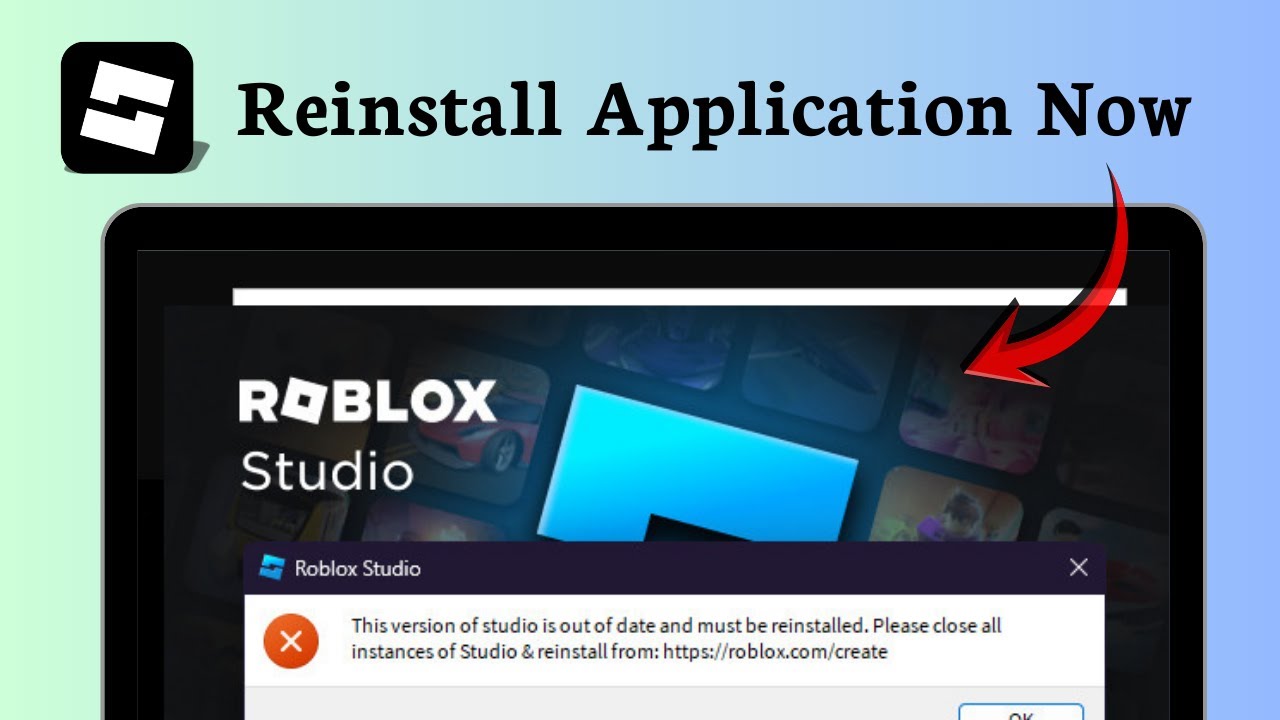
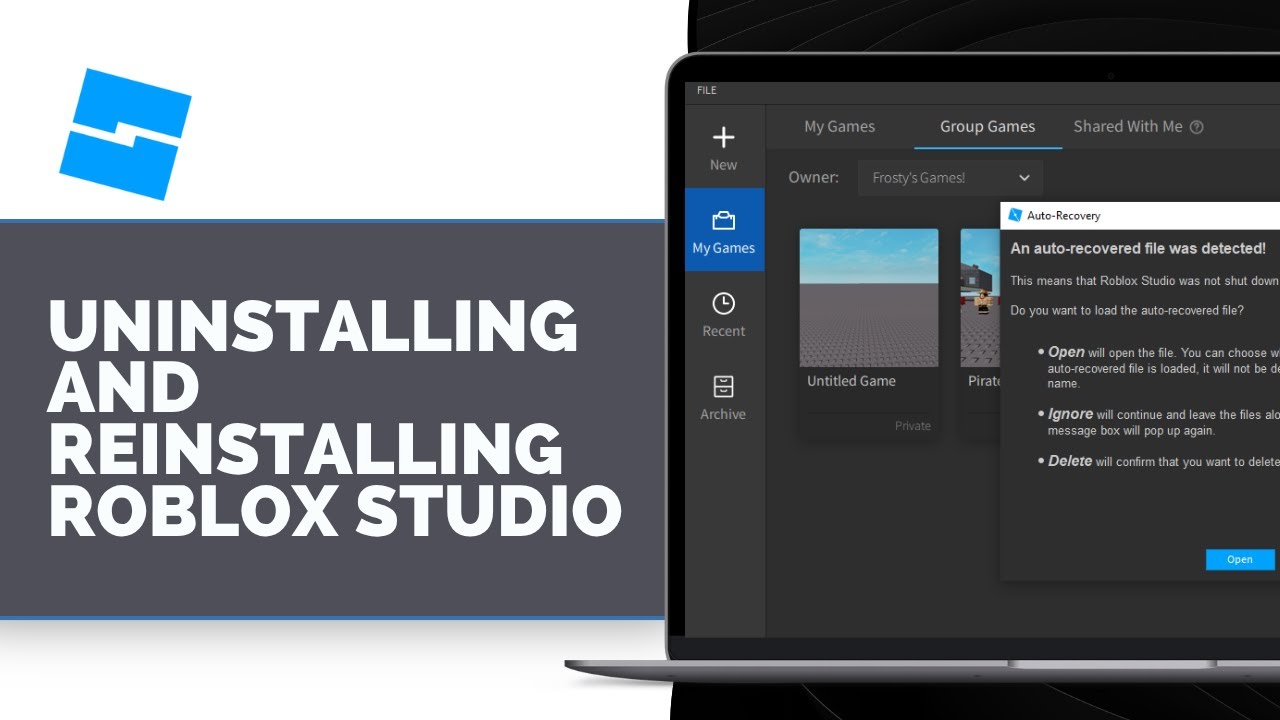
Yes, Roblox Studio is a separate application from the Roblox Player. When uninstalling, you should ideally uninstall both 'Roblox' and 'Roblox Studio' from your system's application list to ensure a complete removal. When reinstalling, the Player is downloaded from the website, while Studio is downloaded separately from the Roblox Creator Hub.
Will reinstalling Roblox help if my game keeps freezing?
Yes, if your Roblox game keeps freezing, a full reinstallation is very likely to help. Freezing often indicates corrupted game files, outdated components, or conflicts within the local installation. A fresh install replaces all these elements with clean, current versions, significantly improving game stability and reducing freezes.
Complete Roblox reinstallation guide, fix game crashes and lag, clear corrupted files for better performance, step-by-step instructions for PC and mobile, preserve game progress and account data.
35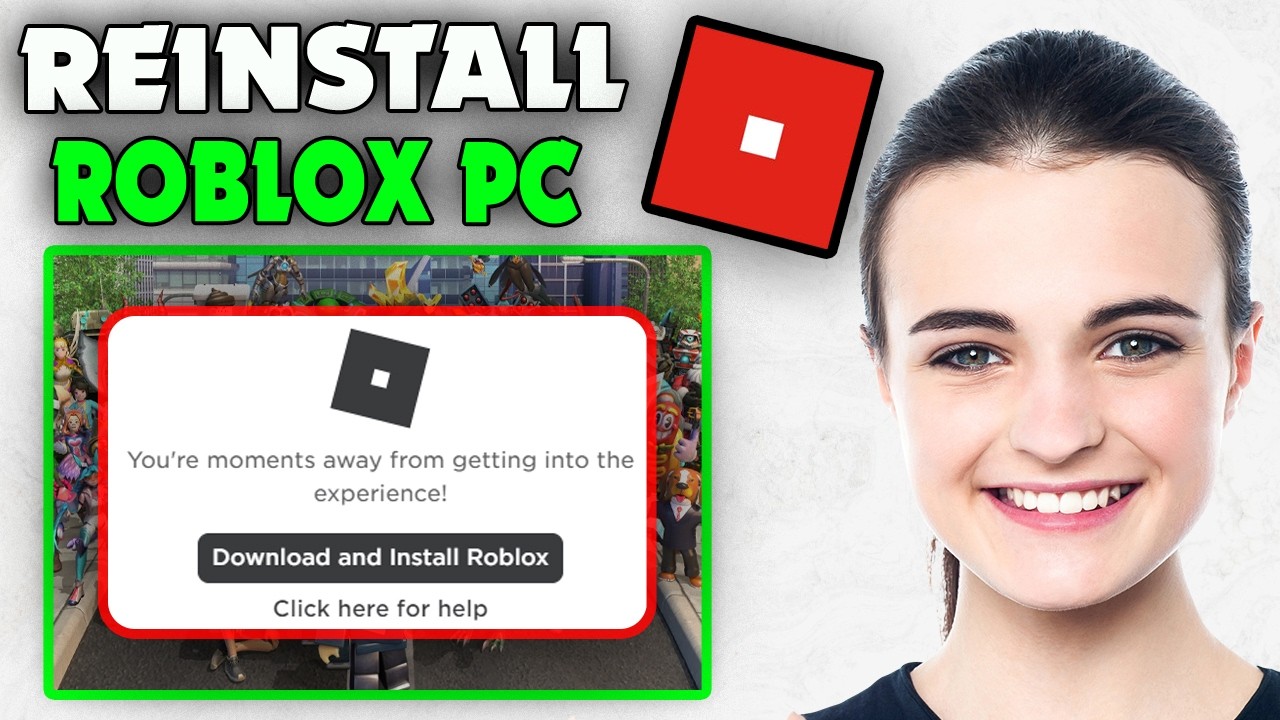


How To Reinstall Roblox PC 2026 YouTube . How To Reinstall Roblox Pc YouTube . How To Update Roblox In 2026 Fix Error Code 280 On PC Mobile Xbox Roblox Update It.webp. How To Reinstall Roblox Studio Software Reset YouTube . Uninstall Roblox Studio How Do You Do It



How To Download Roblox Images In 2026 A Quick Guide Download And Install . How To Install Roblox On A Computer Easily 2026 Guide . How To Update Roblox On All Platforms 2026 Guide AxeeTech Roblox Microsoft Store Update Library . How To Update ROBLOX Windows Android 2026 Roblox Den Image E4b904f853 . How To Reinstall Roblox App Updated YouTube



How To Install Roblox On A Computer Easily 2026 Guide . Roblox Installer Critical Error 2026 Fix Guide Reinstall Roblox . How To Install Roblox On A Computer Easily 2026 Guide . How To And Roblox Studio On PC 2025 Guide . How To Reinstall Roblox 2025 YouTube



How To Install Roblox On A Computer Easily 2026 Guide Image Asset . How To Imstall Roblox Easily In 2026 Your Ultimate Guide Install Roblox Step 30 . How To Reinstall Roblox Windows Mac IOS Android Roblox Den Image Cafa9c6534 . How To Update ROBLOX Windows Android 2026 Roblox Den Image 27d5284f34 . How To Install Roblox On A Computer Easily 2026 Guide Select Roblox And Click



How To Download Roblox On Any Device Easily In 2026 Roblox Download . How Do You Update Roblox On Windows 11 For 2026 Image 0ab5d50c3b . Uninstall Roblox Studio How Do You Do It How To Uninstall Roblox 1 . How To Download Roblox Images In 2026 A Quick Guide . How To Publish A Game On Roblox In 2026 Roblox YouTube


Definitive Guide To Roblox 2026 TM 07169 Definitive Guide To Roblox 2026 . How To Download Roblox On Any Device Easily In 2026 Roblox 1200x675 . Uninstall Roblox Studio How Do You Do It Uninstall Roblox Step 29 . How To Message On Roblox 2026 A Quick Guide . How To Download Roblox Images In 2026 A Quick Guide


Step By Step Guide How To Download Install ROBLOX On Your Computer . How To Reinstall Roblox On PC Easy 2023 YouTube . How Do You Update Roblox On Windows 11 For 2026 . How To Message On Roblox 2026 A Quick Guide SL1500 . How To Reinstall Roblox Windows Mac IOS Android Roblox Den Image 7e207da757