Understanding if Steam backup saves games is a crucial question for any dedicated gamer, especially those balancing busy lives with their passion for interactive entertainment. Losing hard-earned progress, whether it is an epic RPG save file or a meticulously built city, can be incredibly frustrating. This guide delves into the nuances of Steam's backup features, distinguishing between game installation files and crucial save data. Many gamers, particularly the 87% of US adults who game regularly and often dedicate 10+ hours a week, rely on digital platforms like Steam. They seek reliable methods to protect their gaming investments and ensure seamless transitions between hardware or re-installations. We will explore how Steam's cloud saves work, identify local save game locations, and provide practical steps for comprehensive data protection. This article aims to equip you with the knowledge to safeguard your gaming achievements, offering peace of mind so you can focus on enjoying your favorite titles without the fear of irreversible data loss. Stay current with best practices for preserving your digital adventures.
Does Steam's backup feature protect all my game data?
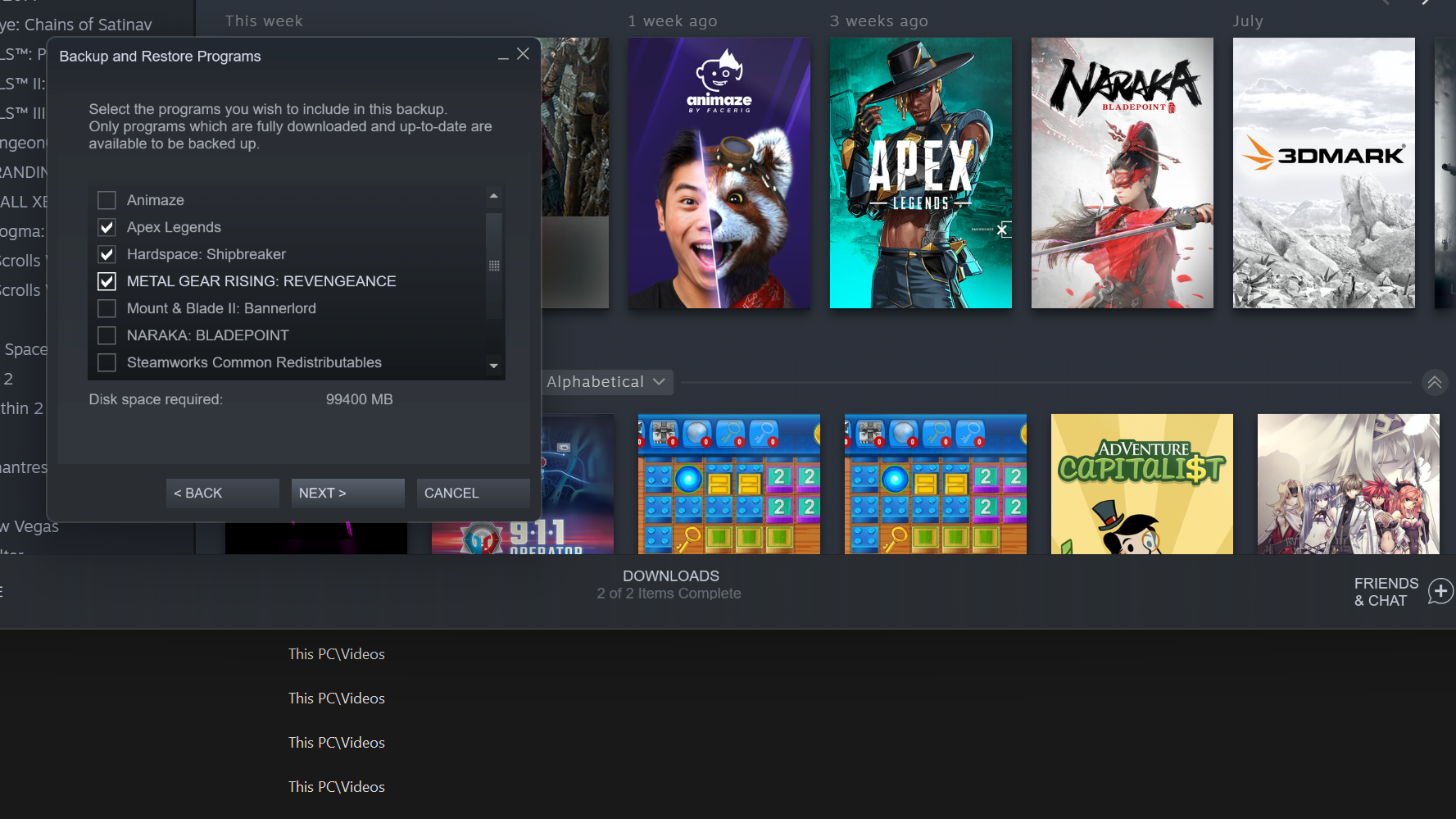
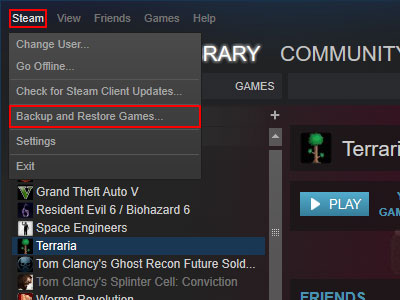
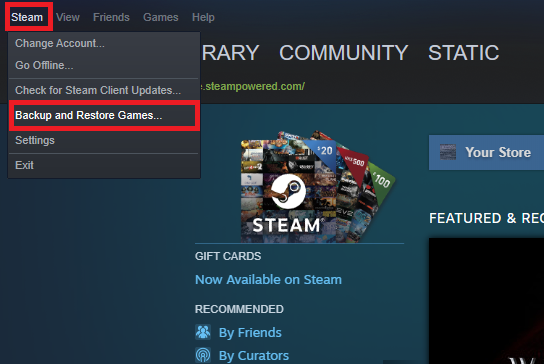
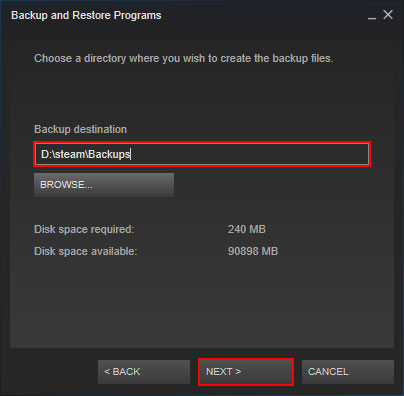
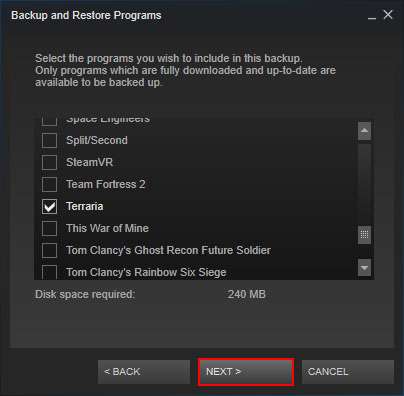
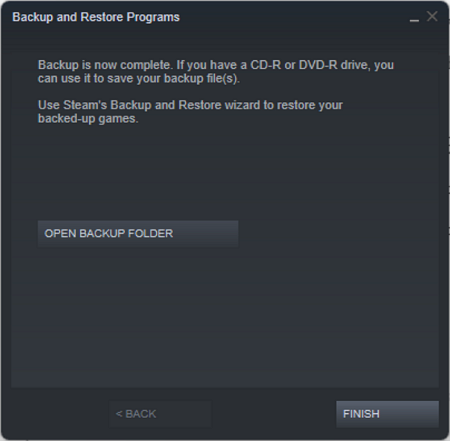
Steam's primary backup utility is designed to archive game installation files, not typically your personal game save data. Most game progress relies on Steam Cloud for synchronization, or it's stored locally in specific folders on your PC. It is essential to distinguish between backing up the game's executable files and backing up your unique player progress.
How can I check if a specific game uses Steam Cloud for its saves?
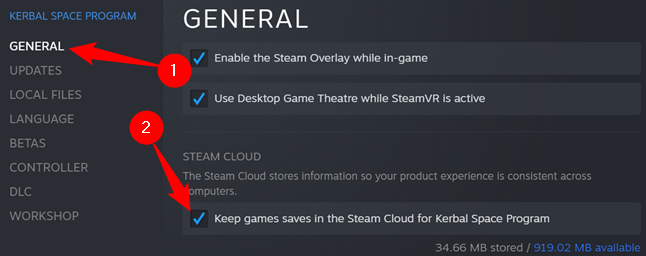
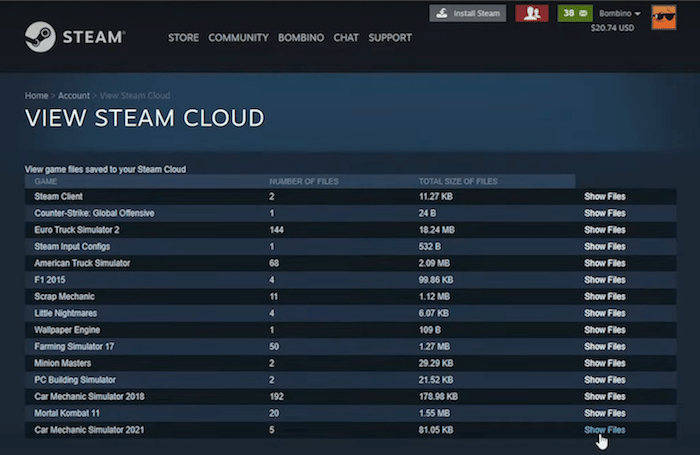
To verify Steam Cloud support, right-click on the game in your Steam Library, select 'Properties,' and navigate to the 'General' tab. You'll see a checkbox labeled 'Keep games saves in the Steam Cloud' if the feature is enabled for that title. The game's store page also lists 'Steam Cloud' under its features.
Where exactly are local game saves stored on my computer if not in the Steam folder?
Local game saves are often scattered across various Windows folders. Common locations include 'Documents' (e.g., C:Users[YourUsername]DocumentsMy Games), the hidden 'AppData' folder (accessible via %appdata% or %localappdata% in Run dialog), or sometimes the dedicated 'Saved Games' folder in your user directory. A quick online search for '[Game Name] save location' is usually the fastest way to find them.
What are the best practices for manually backing up my game saves?
The best practice for manual game save backups involves locating the specific save folder for each game, copying it, and then pasting it to a reliable external hard drive, USB stick, or a dedicated cloud storage service like Google Drive or Dropbox. Label these backups clearly with the game title and date for easy identification and retrieval, especially for critically important single-player titles.
Is it safe to move game save files between different PCs or operating systems?
Moving game save files between PCs is generally safe as long as the game versions are identical, and you place the saves in the correct corresponding directory on the new machine. However, moving saves between different operating systems (e.g., Windows to Linux) or heavily modded installations can sometimes lead to compatibility issues or corruption due to differing file paths or game engine dependencies.
What should I do if my Steam Cloud saves conflict with my local game saves?
If Steam detects a conflict between Cloud and local saves, it will usually present a dialog box asking which version you prefer to keep. Always choose the most recent timestamp to avoid losing progress. If unsure, prioritize the local save if you've been actively playing, then manually back up both before resolving the conflict, for maximum safety.
Can a Steam backup be used to revert to an older game version if an update breaks it?
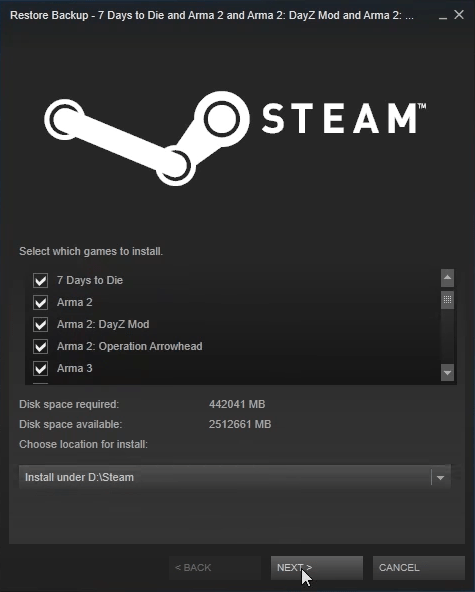
Steam's built-in backup primarily saves the game's installation files at the time of backup. While it can restore the game to that specific version, Steam itself will often immediately try to update the game to the latest version upon launch, making it challenging to stay on an older, unpatched version. This method is not ideal for permanent version rollback. For that, specific game-modding communities or tools are usually required.
Life is a delicate balance, isnt it? For the average US gamer, around 36 years old, juggling work, family, and other commitments means gaming time is precious. The last thing anyone wants after investing dozens or even hundreds of hours into an epic adventure is to lose all their progress due to a hard drive crash, a botched reinstallation, or a new PC build. You've asked the question that keeps many of us up at night: does Steam backup save games? The short answer is, it depends, and understanding the nuances is key to protecting your valuable gaming legacy.
US gamers are more active than ever, with recent data showing about 87% game regularly, often putting in 10+ hours a week. For this dedicated crowd, who enjoy gaming for relaxation, skill-building, and social connection, ensuring their progress is safe is not just a convenience, it's essential for maintaining their gaming sanity. From the social thrills of Helldivers 2 to the cozy farming of Stardew Valley, every minute counts. This article will cut through the confusion, offering practical, no-nonsense advice on how Steam handles your game data and, more importantly, how you can guarantee your save files are safe.
Does Steam Automatically Backup My Game Save Files?
No, not directly through its dedicated backup feature. Steam's built-in backup utility is primarily designed to create a copy of the *game installation files* so you can reinstall the game without re-downloading it. It typically does not include your personal game save files. These save files, which store your progress, character data, and settings, are handled differently. Most modern games, especially those on Steam, rely on Steam Cloud to sync your save data. However, not all games support Steam Cloud, and some may only sync specific types of data, leaving crucial files on your local machine.
Understanding this distinction is vital. When you use Steam's backup function, think of it as creating an archive of the game itself, like a physical disc copy. Your personal journey within that game, however, is usually stored separately. For the busy gamer, relying solely on the Steam backup utility for saves can lead to heartbreak. Always verify a game's Steam Cloud support and consider manual backups for critical titles, especially single-player RPGs or strategy games where progress is paramount.
How Do I Know If a Game Supports Steam Cloud Saves?
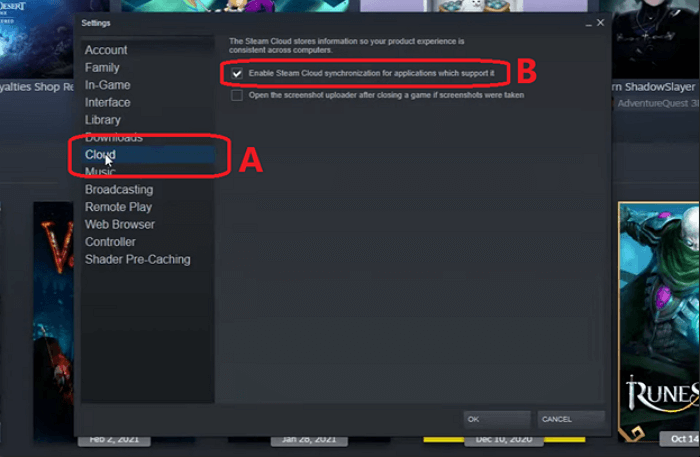
Identifying Steam Cloud support is straightforward within the Steam client. Simply navigate to your Library, right-click on the game you're interested in, and select 'Properties.' In the 'General' tab, you'll see a section for 'Steam Cloud.' If there's a checkbox next to 'Keep games saves in the Steam Cloud for [Game Title],' then the game supports it. Furthermore, the Steam store page for any game will list 'Steam Cloud' under its 'Features' section if supported. This is an important step for any gamer concerned about losing progress, as Cloud saves offer a seamless way to transfer progress between PCs or after a reinstallation, a common scenario for many tech-savvy US gamers.
When you see the Cloud icon next to a game in your library, it means Steam is actively syncing your data. However, ensure the checkbox in the properties is indeed enabled. Some users might disable it for specific reasons, or it might be off by default if there were previous sync issues. For those who frequently switch between devices or perform fresh Windows installs, confirming Steam Cloud is active provides significant peace of mind.
Where Are Local Game Save Files Typically Stored on My PC?
Locating game save files can feel like a treasure hunt, as their storage location varies widely between developers and even individual games. Generally, you'll find them in one of a few common spots:
- Documents Folder: Many games, especially older titles, store saves in a subfolder within your 'Documents' folder (e.g., C:Users[YourUsername]DocumentsMy Games[Game Title]).
- AppData Folder: This is a hidden folder and a popular spot. Saves can be in AppDataRoaming, AppDataLocal, or AppDataLocalLow (e.g., C:Users[YourUsername]AppDataRoaming[Game Title] or C:Users[YourUsername]AppDataLocal[Game Title]). To access AppData, type %appdata% or %localappdata% into the Windows Run dialog (Windows Key + R).
- Game Installation Directory: Less common now, but some games store saves directly within their Steam installation folder (e.g., C:Program Files (x86)Steamsteamappscommon[Game Title]saves).
- Saved Games Folder: Windows also has a dedicated 'Saved Games' folder (C:Users[YourUsername]Saved Games).
The best way to pinpoint the exact location for a specific game is usually a quick online search for '[Game Name] save game location.' Knowing these spots is crucial for manual backups, which are often the most reliable method for ensuring your progress is truly safe, especially for titles without robust Steam Cloud support.
How Do I Manually Backup My Game Save Files?
Manually backing up your game save files is a straightforward process that provides ultimate control and peace of mind. Here's a step-by-step guide:
- Locate the Save Files: Use the methods described above (Documents, AppData, game directory, online search) to find the specific folder containing your game's save data.
- Copy the Folder: Once located, copy the entire save game folder.
- Paste to a Safe Location: Paste this copied folder to a secure, external storage device (USB drive, external HDD), a cloud storage service (Google Drive, Dropbox, OneDrive), or another drive on your PC that is not your primary game installation drive. Many gamers utilize cloud storage for easy access and off-site protection.
- Date and Organize: It's a good practice to name your backup folders with the game title and the date (e.g., 'Cyberpunk2077_Saves_2026-07-25'). This helps you keep track of different save versions.
- Repeat Regularly: For games you play frequently and whose progress is critical, make manual backups a routine. For instance, after completing a major story arc or before trying a risky mod.
This method ensures that even if your primary drive fails, or Steam Cloud encounters an issue, your hard-earned progress is safe and sound. It's a small investment of time for a massive return in security, particularly important for gamers who spend 10+ hours a week in their favorite virtual worlds.
What Are the Limitations of Steam's Built-in Backup and Restore Feature?
Steam's built-in backup and restore utility, while useful for archiving game installation files, has several key limitations that often confuse users expecting it to handle save data:
- No Save File Inclusion: As discussed, it generally does not include your game save files. This is its most significant drawback when discussing game progress.
- Version Dependency: Backups are tied to a specific game version. If a game receives a major update, an old backup might not restore correctly or might require a large update download.
- Large File Sizes: Game backups can be incredibly large (dozens or even hundreds of gigabytes), making them impractical for frequent updates or storage on smaller devices.
- Time Consuming: Creating and restoring these backups can take a significant amount of time, especially for larger titles.
- Manual Process: It's not an automated, set-it-and-forget-it solution. You have to manually initiate the backup process for each game.
For these reasons, most experienced US gamers tend to rely on Steam Cloud for supported titles and manual backups for critical save data rather than Steam's dedicated backup feature for game progress. It's a tool best suited for archiving game installers, not protecting your personal journey within them.
Should I Rely Solely on Steam Cloud for My Game Saves?
While Steam Cloud is a fantastic and convenient feature for syncing game saves across devices and protecting against local data loss, relying solely on it is not always advisable. Here's why:
- Not All Games Support It: Many indie titles, older games, or games from other launchers simply do not have Steam Cloud integration.
- Limited Storage: While generous for save files, there can be limits for some games, especially if they generate very large save files.
- Sync Errors: Occasionally, cloud syncs can fail, leading to older saves overwriting newer ones, or corrupted files uploading. This is rare but can happen.
- Developer Control: The developer determines what data gets synced to the cloud. Sometimes, configuration files or specific user preferences might not be included.
- No Version History: Unlike some dedicated cloud backup services, Steam Cloud typically only keeps the latest version of a save, offering no easy way to revert to previous states if a save becomes corrupted or you accidentally overwrite it.
For critical game saves, especially those representing hundreds of hours of your life, a hybrid approach is often best: leverage Steam Cloud when available, but supplement it with periodic manual backups to an external drive or a general-purpose cloud storage service. This redundancy is the gold standard for busy gamers who simply cannot afford to lose progress.
How Can I Prevent Losing My Game Progress During a PC Upgrade or Reinstallation?
Preventing data loss during major PC changes is paramount for the average gamer who values efficiency and doesn't want to waste precious gaming time replaying content. Here’s a comprehensive strategy:
1. Verify Steam Cloud Status:
- For every game you care about, right-click on it in your Steam Library, go to 'Properties,' and ensure 'Keep games saves in the Steam Cloud' is checked.
- Launch each game briefly after enabling to trigger a sync.
2. Manually Backup Local Save Files:
- Locate the save game folders for all your non-Steam Cloud supported games, or for titles where you want extra redundancy.
- Copy these folders to a reliable external drive or a robust cloud storage service like Google Drive, Dropbox, or OneDrive. Create a clearly labeled folder for 'Game Saves' on your external backup medium.
3. Backup Important Configuration Files:
- Some games store custom settings, control bindings, or mods outside of the save game folder or Steam Cloud. Look in AppData or the game's installation directory for '.ini' files or 'config' folders.
- Copy these alongside your save files.
4. Utilize Drive Imaging (Advanced):
- For a complete system overhaul, consider creating a full disk image of your current Windows installation. Tools like Macrium Reflect Free or built-in Windows backup can do this. This creates an exact snapshot of your entire drive, including all games, saves, and operating system, which can be restored to new hardware (with care). This is for those moments when you're completely overhauling your rig, a common practice among the 60% of gamers who also love PC building.
5. Reinstallation Strategy:
- After reinstalling Windows and Steam, install your games.
- Before launching a game for the first time, check if your Steam Cloud saves have downloaded. If not, and you have manual backups, copy your manual saves into the correct location first.
- If using a full disk image, restoring it will bring back everything as it was.
By combining these methods, you create multiple layers of protection, ensuring that your valuable gaming progress, which represents your time and skill, is preserved no matter what hardware changes you undertake. This proactive approach saves you headaches and maximizes your enjoyment in the long run.
Are there any third-party tools that can help manage game saves?
Yes, several third-party tools can significantly streamline the process of managing and backing up game saves, going beyond Steam's native capabilities. These tools are particularly popular among dedicated PC gamers who play a wide variety of titles, some of which lack robust cloud support. Here are a few notable options:
- GameSave Manager (GSM): This is one of the most popular and comprehensive tools. GSM can detect save game locations for hundreds of titles, allowing you to easily backup, restore, or even transfer saves between different game installations. It can also create scheduled backups and integrate with various cloud storage services. It's a lifesaver for those looking to automate the process for numerous games.
- SyncToy (Microsoft): While not specifically for game saves, SyncToy is a free utility from Microsoft that allows you to synchronize folders. You can set up pairs of folders (e.g., your local save game folder and a folder on your external drive or cloud sync folder) to automatically mirror or echo changes. This is great for keeping manual backups up-to-date with minimal effort.
- Cloud Storage Services (e.g., Google Drive, Dropbox, OneDrive): While not dedicated save managers, their desktop sync clients can be leveraged. You can often redirect a game's save folder (using symbolic links or junction points) to a folder within your cloud sync directory. This effectively makes your local save folder automatically sync to the cloud. This method requires a bit more technical know-how but offers seamless, real-time cloud backup.
- PureSync: Similar to SyncToy but often with more advanced features, PureSync can automate backups and synchronizations, making it ideal for gamers who want robust, scheduled protection for their local save files.
These tools cater to different levels of technical comfort and offer varied features, but all share the common goal of simplifying game save management. For busy gamers, automating save backups can free up valuable time that would otherwise be spent worrying about data loss, allowing more hours for actual gameplay or social interactions within their favorite titles.
Does reinstalling Steam delete my game saves?
Reinstalling Steam itself does not typically delete your game saves, but it can make them harder to access if they are not properly backed up or synced to Steam Cloud. When you uninstall Steam, it primarily removes the Steam client program and its associated installation files. Your actual game installation folders (usually in `steamapps/common`) and your local game save files (often in AppData, Documents, or Saved Games) are frequently left untouched by the standard uninstall process.
However, the risk arises when you reinstall Windows or format your drive. In such cases, if your game saves were only stored locally on the drive being wiped, they will be permanently lost. This is why a multi-pronged backup strategy is so crucial. If a game supports Steam Cloud, reinstalling Steam will usually automatically download your saved progress once you reinstall the game and log in. For games without Cloud support, you would need to manually copy your backed-up save files back into their correct local directories after the game is reinstalled. Always assume local files are vulnerable during a system overhaul, and take precautions.
Are my modded game saves compatible after a reinstallation or moving to a new PC?
Modded game saves can be a bit trickier to manage after a reinstallation or when moving to a new PC, and their compatibility largely depends on the specific game and the nature of the mods. Generally, here's what you need to consider:
- Game Engine Dependence: Some games are very sensitive to mod changes. If a save file relies heavily on a mod that alters core game mechanics, quests, or adds new assets, that save might become unplayable if the mod is not present or if a different version of the mod is used.
- Mod Manager Importance: If you use a mod manager (like Vortex, Mod Organizer 2, or Nexus Mod Manager), it's crucial to reinstall the mod manager and all the associated mods in the exact same order and configuration as before. Mod managers track file overwrites and load orders, which are vital for a stable modded experience.
- Save File Location and Format: While the save file itself might be fine, its readability by the game depends on the game's ability to find and correctly interpret the modded content.
- Clean Installation Recommendation: Many modding communities recommend starting a new game on a fresh installation after reinstalling or moving, especially for heavily modded games. While not ideal for preserving progress, it's often the safest way to ensure stability.
- Backup Mods Too: When backing up saves for modded games, it's often wise to also backup your mod manager profiles, your entire mod collection, and any specific configuration files related to the mods.
In essence, modded saves require a more meticulous backup and restoration process. Prioritize reinstalling all your mods and their dependencies *before* attempting to load a modded save. Otherwise, you risk crashes, corrupted saves, or missing content, which can be frustrating for the dedicated gamer who loves to customize their experience.
Conclusion
Protecting your game saves is not just about avoiding frustration; it's about valuing your time, effort, and the stories you create within your favorite virtual worlds. As we've explored, while Steam Cloud offers fantastic convenience for many titles, it's not a universal solution, and Steam's traditional backup utility focuses on game files, not your precious progress. For the average US gamer, who thoughtfully carves out time for relaxation and skill-building amidst a busy life, a proactive approach to saving game data is essential. By understanding where your saves live, leveraging Steam Cloud effectively, and implementing manual backups, you can game with confidence, knowing your achievements are secure.
What's your biggest gaming challenge when it comes to saving progress? Share your tips or questions in the comments below!
FAQ Section
Does Steam Cloud upload all game save types?
No, Steam Cloud uploads vary by game. While it usually covers core save files, some developers might exclude specific configuration files or local settings, meaning important data could remain on your PC.
Can I backup non-Steam games using Steam's backup feature?
No, Steam's built-in backup and restore utility is exclusively for games purchased and installed through the Steam platform. For non-Steam games, you'll need to manually locate and backup their save files.
What happens if my Steam Cloud save is older than my local save?
Steam will usually prompt you with a conflict resolution dialog, asking which version you want to keep. Always choose the most recent save to avoid losing progress. If no prompt, it can default to the cloud version.
Is there a limit to Steam Cloud storage for game saves?
Yes, each game has a specific Steam Cloud storage limit set by the developer, typically ranging from 100MB to 1GB. While usually ample for save files, it can be reached by games with very large or frequent autosaves.
How often should I backup my game saves manually?
For critical single-player games, consider backing up manually after major progress milestones, before significant system changes (like a Windows reinstall), or at least once a month for frequently played titles. For multiplayer games, cloud saves are usually handled server-side.
Can I recover a corrupted save file from Steam Cloud?
Steam Cloud typically stores only the latest version, so recovering a previously uncorrupted save is difficult if a corrupted one has already synced. Manual, dated backups are your best bet for recovering from corruption.
Do Steam backups include screenshots and gameplay videos?
No, Steam's game backup utility focuses on installation files. Screenshots are typically stored separately in your Steam client's 'Screenshots' folder, and gameplay videos are not managed by Steam's backup system at all; these require separate backup strategies.
Steam Cloud saves crucial game data for many titles. Steam's built-in backup utility primarily saves game installation files, not typically save data. Manual backup of local save game folders is often required. Understanding the difference between Steam's game files and your individual progress is key. Protecting game saves is essential for busy gamers who value their limited gaming time.
35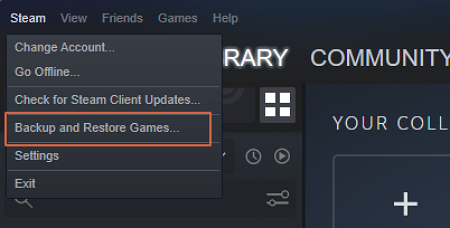



How To Backup GTA V Files On Steam 2026 Tutorial EaseUS Click Steam To Backup Restore . How To Backup And Restore Your Game On Steam YouTube . How Steam Game Backups Work Feat Steam Deck YouTube . How To Backup Restore Steam Cloud Saves Gaming Tips Steam Backup Game Files . How To Backup Games On Steam Restore Your Games On Steam 2024 YouTube


Steam Cloud Valve Click General Tab Click Keep Games Saves In The Steam Cloud For Kerbal Space Program . How To Restore Steam Games From Previous Backup Or External Images. Steam Backup PC Gamer . How To Backup Steam Games Steam Backup Games Ss4 . Comment Sauvegarder Des Jeux Sur Steam How To Backup Steam Game Files 3


How To Backup Steam Games Steam Backup Games Ss1 1 1024x546 . How To Backup Your Currently Installed Games In Steam Steam Backup Installed Games Tn . Backup Steam Games On A NAS Overage Gaming . How To Restore Game Data On Steam Images. How To Restore Steam Cloud Saves In 8 Tricks Recover Via Steam Backups 04


How To Backup Games On Steam A Beginner Friendly Guide How To Backup Steam Game Files 6 . How To Backup And Restore Steam Games Safely Must Do Before Modding . How To Backup Games On Steam A Beginner Friendly Guide How To Backup Steam Game Files 5 . How To Restore Steam Cloud Saves In 8 Tricks Recover From Steam Cloud 01 . How To Backup GTA V Files On Steam 2026 Tutorial EaseUS How To Backup Gta V Files Steam



How To Backup GTA V Files On Steam 2026 Tutorial EaseUS Backup Finish . How To Backup Steam Game Save Data Step By Step Method YouTube . January 2026 S Top Selling New Steam Games Revealed 08418405 04a2 47eb B48b 1500x843 . Steam Summer Sale 2026 Ultimate Guide To Save Big On Games TURGAME Blog. How To Backup And Restore Steam Games Before Modding Or Tweaking Them
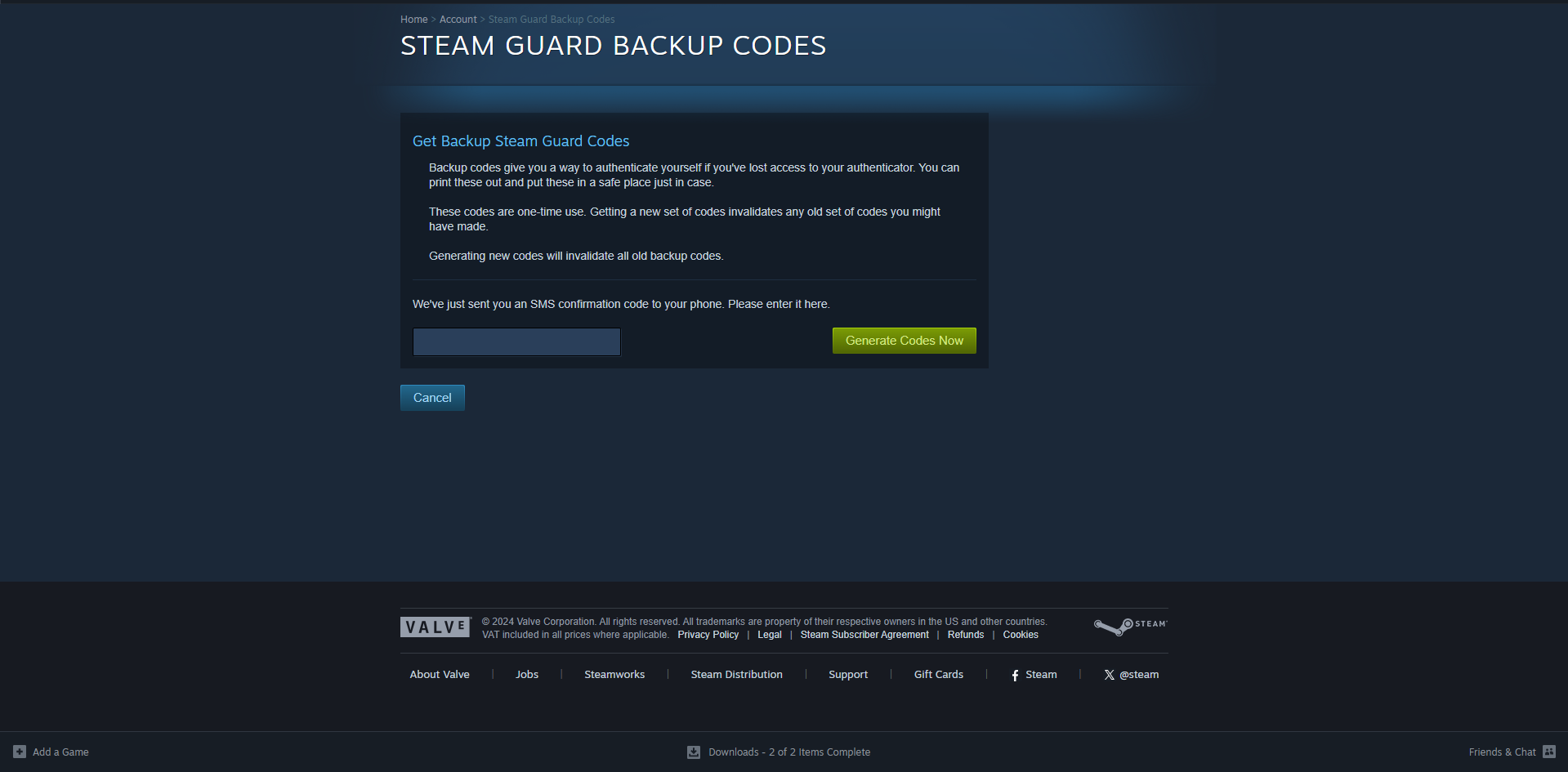


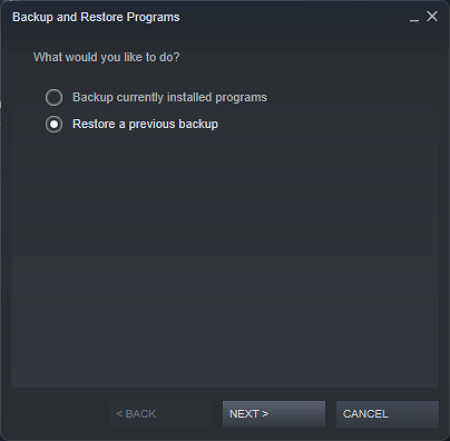

How To Generate Steam Backup Codes Simple Image5 6 . When Is The Next Steam Sale May 2026 Update Countdown. Steam Saves Location And Game Data Guide 2026 Thinglabs Store Home Share11 1536x864 . How To Backup GTA V Files On Steam 2026 Tutorial EaseUS Restore Previous Backup . Save Your Progress How To Back Up And Restore PC Games 2026 9
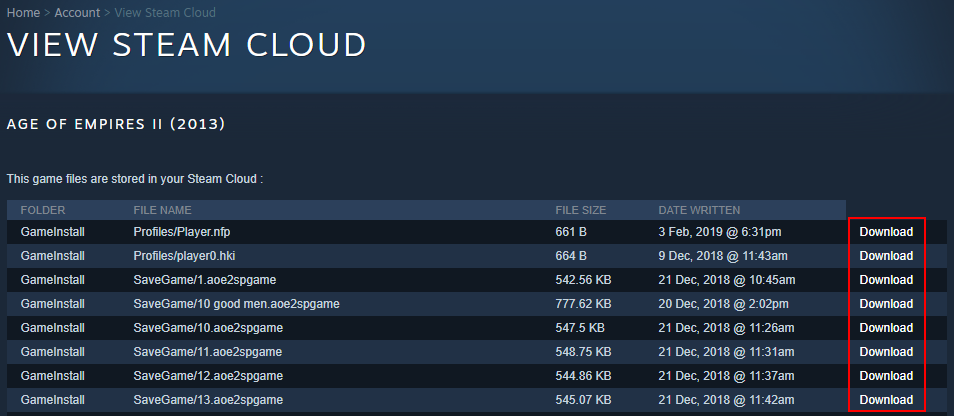

Steam Cloud Saves How To Download And Delete Steam Saved Games Download Steam Cloud Files . How To Backup And Restore Steam Games TechGainer Select Game For Backup . Steam Sale 2026 Key Dates You Need To Know LevelUpTalk Steam Sale Schedule 2026 08 27 2025 7c35051e 2c22 4093 96f1. How To Recover Steam Save Files Steam Lost Game Data How To Recover Steam Save Files 3 . Lost Monster Hunter Data How To Recover Save Data 2026 Tips EaseUS Recover Monster Hunter Data 2