Discover comprehensive solutions and troubleshooting tips for why Roblox isnt working today. This guide offers practical advice for busy US gamers balancing life and play, addressing common issues like server outages, connection problems, and game client glitches. Learn how to quickly diagnose and fix Roblox not loading, crashing, or connecting on PC, mobile, and other devices. We cover everything from checking server status and optimizing your internet connection to updating software and managing device resources. Get back to building and playing with friends efficiently, ensuring your valuable gaming time is spent enjoying Roblox, not troubleshooting it. This informational resource is tailored for the average gamer who seeks reliable, straightforward fixes to get their favorite platform running smoothly again.
Related games- Deepwoken Roblox Guide: How to Start Survive & Master
- Guide Greenville Roblox Codes How To Get Free Items
- Guide Recover Roblox Account No Email No Password
- Guide How to Do Voice Chat in Roblox Safely
- How to Custom Build Your Gaming PC Ultimate Guide 2026
Is Roblox down today?
Always check the official Roblox Status page (status.roblox.com) first to see if there are widespread server outages. This is the fastest way to determine if the issue is global or local to your device.
Why is my Roblox not opening?
Roblox might not be opening due to outdated client files, corrupted cache, or interference from your firewall or antivirus. Try clearing your browser cache, reinstalling Roblox, or adding it as an exception in your security software.
How to fix Roblox connection issues?
To fix Roblox connection issues, restart your router and modem, ensure your internet is stable, temporarily disable any VPNs, and check your firewall settings to make sure Roblox isn't being blocked.
What to do if Roblox games won't load?
If specific Roblox games won't load, try joining a different server or restarting the Roblox application. The issue might be with that particular game's server or a temporary glitch in your client's interaction with it.
My Roblox keeps crashing, help!
Frequent Roblox crashes often stem from outdated graphics drivers, insufficient system resources (close background apps), or a corrupt Roblox installation. Update your drivers and consider a clean reinstall of the Roblox client.
How do I check if Roblox servers are down for everyone?
To check if Roblox servers are down for everyone, visit the official Roblox Status page at status.roblox.com. You can also consult reliable third-party websites like DownDetector or check official Roblox social media channels for real-time updates.
What are the common causes for Roblox not loading on my device?
Common causes for Roblox not loading include a poor internet connection, outdated app/client versions, insufficient device storage, conflicting background applications, or temporary server issues. Always start by checking your internet and the Roblox status page.
Can an outdated operating system affect Roblox performance?
Yes, an outdated operating system can definitely affect Roblox performance and stability. Ensure your Windows, macOS, Android, or iOS is always updated to its latest version to maintain compatibility and optimal functionality.
Why am I getting error codes when trying to play Roblox?
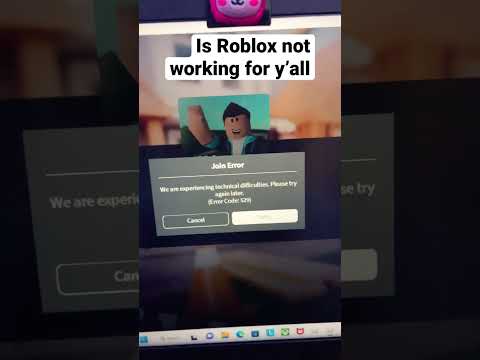
Error codes in Roblox often point to specific issues. Common ones like Error 277 indicate connection problems, while others might signal game file corruption or system conflicts. Searching the specific error code can provide tailored troubleshooting steps.
Is it safe to clear Roblox cache files?
Yes, it is perfectly safe to clear Roblox cache files. Doing so can resolve various loading and performance issues by removing corrupted temporary data, and it won't delete your progress or account information.
What if my antivirus is blocking Roblox from running?
If your antivirus is blocking Roblox, you'll need to add Roblox as an exception or allow it through your antivirus software's settings. Temporarily disabling the antivirus to test can confirm if it's the culprit before making permanent changes.
How can I improve Roblox performance on a low-end PC?
To improve Roblox performance on a low-end PC, lower your in-game graphics settings, close all unnecessary background applications, ensure your drivers are updated, and consider cleaning out temporary files periodically to free up resources.
Ever settled down after a long day, ready to jump into Roblox, only to be met with a frustrating error message or a blank screen? You are not alone. For many US gamers, particularly those balancing careers, family, and life, gaming isn't just a hobby; it's a vital escape, a way to unwind, connect with friends, or even build new skills. It's incredibly frustrating when that precious downtime is stolen by technical glitches. With 87% of US gamers regularly dedicating an average of 10+ hours a week to their passion, and mobile gaming continuing its dominance, keeping platforms like Roblox running smoothly is crucial for everyone.
You might be asking, "why isnt Roblox working today?" This month, social and cozy games are trending, and Roblox, with its vast universe of user-created experiences, sits right at the heart of this trend. When it falters, it can feel like a major disruption. This comprehensive guide is designed for you, the everyday gamer, offering straightforward, no-nonsense solutions to get you back in the game. We'll tackle common pain points, from setup woes to performance issues, ensuring you spend less time troubleshooting and more time enjoying your virtual adventures. Let's dive in and solve your Roblox problems!
Is Roblox Down Today? How to Check Server Status Effectively
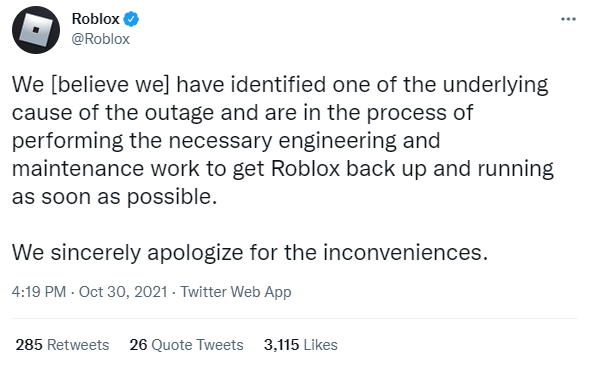
The first and most crucial step when Roblox isn't working is to determine if the issue is on your end or if Roblox's servers are experiencing an outage. A widespread server issue means no amount of local troubleshooting will help. Checking the official Roblox server status should always be your go-to.
Roblox maintains an official Status Page that provides real-time updates on its services. This page will clearly indicate if there are ongoing issues with the website, game client, specific games, or other features. Look for green indicators for normal operation and red or orange for service disruptions.
- Visit status.roblox.com directly.
- Check third-party downdetector websites like DownDetector.com. These sites aggregate user reports and can often confirm widespread issues quickly, though they are not official.
- Monitor Roblox's official social media channels (like X, formerly Twitter). Companies often post updates on major outages there.
If the status page shows all systems operational, then the problem is likely on your side, and we can move on to specific troubleshooting steps.
Why Is My Roblox Not Connecting to the Internet?
A stable internet connection is the backbone of any online gaming experience. If Roblox isn't connecting, your network is often the culprit. Even if other apps seem fine, Roblox might require a more consistent connection.
Start by performing a basic network reset. Unplug your modem and router from power for about 60 seconds, then plug them back in and wait for them to fully restart. This often resolves minor network glitches. Also, try connecting to a different Wi-Fi network if possible, or use a wired Ethernet connection to rule out wireless interference.
Next, check your firewall and antivirus software. These security tools can sometimes mistakenly block Roblox from accessing the internet. Temporarily disable them and try launching Roblox. If it works, you'll need to add Roblox as an exception in your security software settings. Ensure no VPN or proxy server is active, as these can interfere with Roblox's connection.
How Do I Fix Roblox Not Launching on PC?
PC gamers often encounter issues with the Roblox client itself. If Roblox isn't launching or keeps crashing, a few key steps can help. Start by ensuring your operating system and graphics drivers are up to date. Outdated drivers are a common cause of game instability.
Try clearing Roblox's temporary files and cache. Navigate to your AppData folder (type %localappdata% in your Windows search bar) then find the Roblox folder. Delete the 'Versions' folder to force a fresh download of core game files. Also, clear your browser's cache, especially if you're launching Roblox from the website, as corrupt browser data can interfere.
Sometimes, simply reinstalling Roblox can work wonders. Completely uninstall the client from your computer, then download the latest version from the official Roblox website and perform a clean installation. Running Roblox as an administrator can also resolve permission-related launching issues.
What to Do If Roblox Mobile Isn't Working?
Mobile gaming is huge, and many play Roblox on their phones or tablets. If your Roblox mobile app isn't working, these steps can help. First, restart your device. This clears temporary glitches and refreshes your system.
Check for app updates in your device's app store (Google Play Store for Android, Apple App Store for iOS). An outdated app version can lead to compatibility issues. Also, ensure your device's operating system is up-to-date. If issues persist, try clearing the app's cache and data from your device settings (Settings > Apps > Roblox > Storage > Clear Cache/Data). Be aware that clearing data might log you out, so have your credentials ready.
As a last resort, uninstall and reinstall the Roblox app. This often resolves deeply ingrained app-related problems. Remember to ensure you have enough storage space on your device, as insufficient space can cause apps to malfunction.
Are Roblox Game-Specific Issues Common and How to Fix Them?
Sometimes, Roblox itself works, but a specific game isn't loading or playing correctly. This can be frustrating, especially if it's a game you enjoy playing with friends. These issues are indeed common and usually stem from the game's code, server load, or your client's interaction with that particular experience.
If only one game is affected, try joining a different server within that game, if the option is available. Often, a specific server might be experiencing issues while others are fine. Check if other games on Roblox load and play correctly. If they do, the problem likely lies with the specific game's developer. Report the issue to the game's developer if possible, and try joining the game later.
Ensure your graphics settings within Roblox aren't too high for your device. Lowering them can sometimes resolve performance issues in graphically intensive games. Also, verify that your device meets the minimum requirements for that particular game, as some experiences are more demanding than others.
Could Parental Controls or Account Restrictions Cause Roblox Issues?
For many families, Roblox is a shared experience, and parental controls are a vital safety feature. However, these controls or other account restrictions can sometimes inadvertently prevent Roblox from working as expected.
Check your Roblox account's privacy settings and parental controls. If an adult gamer is sharing an account or device with younger players, strict settings might limit access to certain games or features. Ensure your account's age verification is correct, as some experiences are age-restricted. If you are experiencing issues with purchasing Robux or accessing specific content, these settings are often the cause.
If you're managing a child's account, review the account restrictions from the parent dashboard. Sometimes, playtime limits or content filters might be blocking access without you realizing. These settings are designed to protect, but it's important to understand how they interact with your gaming experience.
When Should I Contact Roblox Support for Help?
You've tried everything mentioned above, but Roblox still isn't working today. When do you throw in the towel on self-troubleshooting and reach out to the experts? Knowing when to contact Roblox Support can save you time and frustration.
You should contact Roblox Support if:
- You've systematically gone through all the basic and advanced troubleshooting steps without success.
- The issue is account-specific (e.g., login problems, billing issues, account suspension, Robux not appearing).
- You're encountering a persistent error code that you can't find a solution for online.
- The official Roblox Status Page indicates a widespread issue that has not been resolved within a reasonable timeframe.
- You suspect your account has been compromised.
When contacting support, be prepared to provide as much detail as possible: your Roblox username, the device you're using, a clear description of the problem, any error messages, and the troubleshooting steps you've already taken. This information helps them diagnose and resolve your issue more efficiently.
How Can I Prevent Roblox Issues in the Future?
Proactive maintenance can save you a lot of headaches. Just like maintaining a car, a little regular care for your gaming setup can prevent many common Roblox issues from cropping up in the first place.
- Keep Software Updated: Regularly update your operating system, graphics drivers, and the Roblox application itself. Developers constantly release patches that fix bugs and improve performance.
- Maintain Good Internet: Ensure your internet connection is stable. Consider a wired connection for PC gaming. Restart your router periodically to keep it fresh.
- Monitor Device Resources: Close unnecessary background applications while playing Roblox. This frees up RAM and CPU cycles, improving game performance and stability.
- Clear Cache Regularly: Periodically clear your browser cache (if launching from the web) and the Roblox temporary files as described earlier.
- Security Software Configuration: Double-check that your firewall and antivirus software are configured to allow Roblox without overly restricting its access.
- Review Account Settings: Occasionally review your account privacy and parental control settings to ensure they align with your current gaming needs.
By adopting these habits, you'll create a more robust and reliable Roblox experience, allowing you to focus on the fun and social aspects of the platform, whether you're relaxing after work, connecting with friends, or exploring new worlds.
FAQ Section
Here are some quick answers to frequently asked questions about Roblox issues:
What is a common error code when Roblox isn't working?
A common error is 'Error Code 277' which usually indicates a network connection issue. Troubleshooting your internet connection, firewall, and VPN is the best first step to resolve this.
Can a slow internet connection make Roblox unplayable?
Yes, a slow or unstable internet connection can cause significant lag, disconnections, and make Roblox games unplayable. Ensure you have a stable broadband connection for the best experience.
Why does Roblox keep crashing on my mobile device?
Roblox often crashes on mobile due to insufficient RAM, outdated app versions, or too many background apps running. Try restarting your device, updating the app, and closing other applications.
Is Roblox a free-to-play game?
Yes, Roblox is free-to-play, offering access to millions of user-created games. However, it includes in-game purchases (Robux) for cosmetic items, game passes, and other enhancements.
How do I know if my PC can run Roblox effectively?
Roblox has relatively low system requirements, but for optimal performance, ensure your PC has a modern CPU (Intel Core i3 or equivalent), 4GB+ RAM, and a decent graphics card (DirectX 9 or higher). Keep drivers updated.
Can I play Roblox on a Chromebook?
Yes, many Chromebooks can run Roblox through the Google Play Store Android app. Performance may vary depending on the Chromebook's specifications and internet connection quality.
Conclusion
Dealing with Roblox when it's not working today can certainly test your patience, especially when you're looking forward to winding down with some quality gaming time. We've covered the most common culprits, from server outages and internet woes to client issues on both PC and mobile, and even specific game glitches. Remember, most problems have straightforward solutions. By methodically checking server status, your internet connection, device updates, and app integrity, you can often get back into the action quickly.
Don't let technical hiccups steal your joy from building, exploring, and socializing in the vast Roblox metaverse. With these tips, you're now better equipped to diagnose and fix issues, ensuring your gaming sessions are as smooth and enjoyable as possible. What's your biggest gaming challenge when Roblox isn't cooperating? Comment below and share your experiences!
Roblox not working fixes, Server status check, Internet connection troubleshooting, Device update solutions, Corrupt game file repair, Parental control checks, Common error code solutions, Roblox client repair, Mobile app fixes, Contacting Roblox support.
35


Is Roblox Down Right Now Issues Roblox Not. Why Is Roblox Not Working June 2026 24 Fixes That Actually Work Why Is Roblox Not Working 2025 24 Fixes That Actually Work . SOLVED Why Isn T Roblox Working In 2025 SOLVED Why Isnt Roblox Working . Fix Roblox Not Launching On PC Laptop 2025 Roblox Not Opening YouTube . WHY ROBLOX IS NOT WORKING FIX YouTube


Why Roblox Is Not Working Today YouTube Hqdefault . How To Fix Roblox Not Working Here S Why Roblox Servers Are Down Today . Why Isn T Roblox Working YouTube Hq2 . Roblox Has Been Down For Nearly Two Days PC Gamer 1200 80 . Is Roblox Down Right Now Issues Why Is Roblox Not Working



Why Is Microsoft Roblox Not Working Solutions For 2026 Roblox . Why Isnt Roblox Working Right Now Shorts Roblox YouTube . Roblox Blocked Lets Get You Back In The Game Why Roblox Wont Open 1536x1024 . Roblox 2026 New Logo REVEAL First Look At The Future Shorts YouTube Hq2 . Roblox Problem 2024 Roblox Servers Down 2024 Why Is Roblox Not



Why Is Microsoft Roblox Not Working Solutions For 2026 Roblox Mic Not Working . SOLVED Why Isn T Roblox Working In 2025 Common Reasons Why Isnt Roblox Working Today . What Is Garhorse Roblox And Why Is It Popular In 2026 Updated Roblox. What Is Broack Roblox And Why Is It Trending In 2026 . Why Is Roblox Not Connecting To The Internet Dibujos Cute Para Imprimir


SOLVED Why Isn T Roblox Working In 2025 Roblox Not Working On PC . Why Is Roblox So Popular Lets Unpack It Why Is Roblox Not Working . Why Is Roblox Not Working Right Now Roblox 930x620 . SOLVED Why Isn T Roblox Working In 2025 Update Windows . What Is Hypergolic Roblox And How Does It Work 2026 Maxres2




Why Won T My Roblox Voice Chat Work Simple Fixes . Why Isn T My Roblox Mic Working YouTube . SOLVED Why Isn T Roblox Working In 2025 Why Roblox Not Working Issue Online Scaled . Why Won T My Roblox Voice Chat Work Simple Fixes . Why Doesnt My Keyboard Work In Roblox


Roblox Site Everything Is Down Bug Reports Developer Forum Roblox . Why Isnt My Mouse Working In Roblox . How To Fix Roblox Not Working Crashing Not Responding On Android . Why Is Roblox Not Working Why Is Roblox Not Working 1024x576 . Is Roblox Shutting Down What Players Need To Know Gamer Org Is Roblox Shutting Down What Players Need To Know 768x403